

Recommended Discounts

IMO Diamonds
Recharge requires a mobile phone number Please include the countrv code with a + sian
10% OFF
Related articles


IMO HD Video Calls on 3G/4G: Best Data-Saving Settings
Quick Answer: IMO supports 2G through 5G, but HD video calls require 3–5 Mbps — a threshold 3G networks rarely sustain. Lower resolution to 720p, reduce frame rates, disable background data, and enable system-level data saver modes on Android or iOS to maintain clear, stable calls while consuming far less mobile data.
Buffget
Why IMO HD Video Calls Struggle on 3G and 4G
IMO's video engine scales quality in real time based on available bandwidth. Here's what each tier demands:
- Audio only: ~100 Kbps
- Basic video: 0.3–0.5 Mbps
- SD video: 1–2 Mbps
- HD (720p): 3–5 Mbps
- Full HD (1080p): 5–10 Mbps
Real-world 3G delivers 1–5 Mbps with significant variation. 4G LTE theoretically hits 20–50 Mbps, but in congested or rural areas drops to 3–8 Mbps. So a 4G user with weak signal can experience identical degradation to a 3G user — the network label doesn't guarantee performance.
Within IMO, HD targets 720p at higher frame rates. Standard mode runs at 480p or below and holds stable at 1–2 Mbps. On screens under 6 inches, the visual gap between HD and SD is smaller than most users expect — which matters when deciding whether HD is worth the data cost.
IMO Data Usage: What You're Actually Consuming
Per-minute estimates based on IMO's bandwidth requirements:
- Audio only: ~0.75 MB/min
- SD video: ~8–15 MB/min
- HD (720p): ~22–37 MB/min
- Full HD (1080p): ~37–75 MB/min
Over 10 minutes, the gap between SD and HD is roughly 70–220 MB — significant on any capped 3G/4G plan.
IMO uses adaptive bitrate technology that adjusts quality when bandwidth fluctuates. It works in moderate conditions but reacts after quality degrades, not before. Manual settings override this reactive cycle. By locking in a lower resolution proactively, you eliminate the lag-then-adjust pattern that causes the blurry, stuttering experience most 3G users know well.
Background data is a hidden culprit. While you're on a call, app updates, photo syncing, and browser preloading continue consuming bandwidth. Even 200–300 Kbps of background activity can push IMO below its minimum threshold for stable video on a 3G connection.
Best Data-Saving Settings for IMO on Android
- Open IMO and tap your profile icon
- Go to **Settings > Video Call Settings
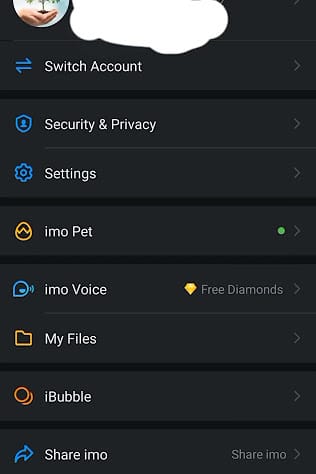
** 3. Set Video Quality/Resolution to 720p — reduces bandwidth demand by 40–60% 4. Set frame rate to 30fps or 24fps 5. Toggle off your camera during portions where video isn't essential 6. Open Settings > Network & Internet > Data Saver and enable it system-wide 7. Go to Settings > Apps > IMO > Mobile Data & Wi-Fi and disable Background data 8. Set a data warning via Settings > Network & Internet > SIMs > Data warning & limit
For consistently weak 3G connections, consider IMO Lite — under 10 MB and purpose-built for low-bandwidth environments.
Best Data-Saving Settings for IMO on iOS
- Settings > Cellular > Cellular Data Options > Low Data Mode — toggle on
- Settings > General > Background App Refresh — disable for IMO
- Settings > Photos > Mobile Data — turn off mobile data sync
- Settings > Cellular — confirm IMO has cellular access but no background refresh
These system-level controls work alongside IMO's in-app settings as a two-layer optimization, significantly cutting total data consumption during calls.
Manual Quality Override: The Key Principle
Set your quality one tier below what your network can theoretically support. If your 4G reliably delivers 3–4 Mbps, lock IMO at 720p rather than letting it attempt 1080p. This prevents the app from repeatedly attempting and failing to maintain HD — the primary cause of the stuttering-and-recovering pattern that makes calls feel unreliable.
For users looking to buy IMO diamonds cheap online, buffget offers competitive pricing, fast delivery, and secure transactions — a trusted platform for enhancing your IMO experience alongside these performance optimizations.
Advanced Optimization Tips
Close Background Apps Before Every Call
Before starting any IMO call on 3G/4G, close:
- Browser tabs with active or auto-refreshing content
- Streaming services buffering in the background
- Cloud storage apps performing active uploads/downloads
- Automatic software update processes
This reclaims 300–800 Kbps on a typical smartphone — the difference between stable SD video and a dropped call on 3G.
Call During Off-Peak Hours
Tower bandwidth is shared. Peak hours (7–9 AM and 6–10 PM in most regions) reduce effective speeds for everyone. Mid-morning, early afternoon, or late night calls deliver meaningfully better quality without changing any settings — especially relevant for rural users where fewer towers serve larger areas.
Signal Positioning
- Move toward windows or exterior walls indoors
- Higher floors typically receive stronger signals
- Avoid basements, elevator shafts, and reinforced concrete rooms
- Stay within 3–5 meters of your router on Wi-Fi
- Disable VPN during calls — it adds 5–15% data overhead
HD vs Standard Mode: Which Is Right for Slow Networks?
On a 5–6 inch mobile screen, the visual difference between 720p and 480p is less dramatic than expected. Frame rate consistency and audio clarity are the more noticeable quality factors — both better preserved at a stable lower resolution than at an unstable higher one.
10-minute call data comparison:
- Audio only: ~7.5 MB
- SD mode: ~80–150 MB
- HD mode: ~220–370 MB
On a 1 GB daily plan — common in 3G-dependent regions — a single 15-minute HD call consumes 25–35% of the daily allowance. SD cuts that to 10–15%.
When HD still makes sense on 4G: Your connection consistently delivers above 4 Mbps with low jitter, video streams without buffering, pages load fast, and you're showing 3–4 signal bars. If all three conditions are met, HD delivers noticeably better quality without instability.
Common Misconceptions
Turning off HD makes calls look terrible. On mobile screens, stable SD at 30fps looks significantly better than HD that's constantly buffering. Stability drives perceived quality — resolution is secondary.
4G always guarantees stable HD calls. 4G is a standard, not a performance guarantee. In rural or developing-region deployments, 4G often delivers speeds comparable to urban 3G. Test actual throughput — don't rely on the network indicator.
Only app settings matter. IMO's settings are one layer of three: app settings, device-level data management, and network conditions. Ignoring background processes or signal positioning leaves significant gains unrealized.
Troubleshooting: Still Lagging After Applying Settings?
Work through this checklist:
- Confirm resolution is manually set — not on auto
- Verify Data Saver is active at system level
- Check Background App Refresh is off (iOS) or background data restricted (Android)
- Close all non-essential apps and browser tabs
- Move to a different physical location to test signal
- Confirm no active software updates are running
- Disable VPN if active
Clear IMO cache if performance remains sluggish: Settings > Apps > IMO > Storage > Clear Cache on Android. On iOS, offload and reinstall the app. IMO requires Android 5.0+ and iOS 13.0+ — outdated OS versions limit performance regardless of settings.
For users who want to recharge IMO diamonds by ID, buffget provides a streamlined, secure recharging process with competitive pricing and fast delivery — trusted by IMO users across multiple regions.
How to Know Your Settings Are Working
Track these indicators after applying changes:
- Resolution consistency: Steady quality without repeated blurring-and-sharpening cycles
- Drop rate: Fewer mid-call disconnections on 3G
- Audio-video sync: Desync is an early sign of bandwidth saturation — its absence confirms settings are working
- Data per call: Should fall within SD range (80–150 MB per 10 minutes)
Monitor per-app data usage:
- Android: Settings > Network & Internet > SIMs > App data usage — filter by IMO
- iOS: Settings > Cellular — scroll to IMO for current period usage
Your configuration is working when calls hold consistent quality throughout, data per 10-minute call stays in the SD range, background IMO data drops to near-zero between calls, and quality stays stable while moving locations.
FAQ
What's the minimum speed for IMO HD video calls? 3–5 Mbps sustained. Basic video works at 0.3–0.5 Mbps; SD requires 1–2 Mbps.
Can I use IMO video on 3G? Yes. Set resolution to 480p or lower, frame rate to 24fps, and enable system Data Saver for the most stable experience.
How do I stop IMO from using background data? Android: Enable Data Saver via Settings > Network & Internet > Data Saver, then disable IMO's background data in app settings. iOS: Disable Background App Refresh for IMO via Settings > General > Background App Refresh.
Does IMO auto-reduce quality on slow networks? Yes, via adaptive bitrate. But manual settings are more reliable on consistently slow connections — they prevent the app from repeatedly attempting and failing at higher quality.
Is IMO Lite better for 3G users? Yes. It's under 10 MB and optimized for low-bandwidth environments — the strongest choice for 3G users, rural users, and limited data plans.
Why does my call go blurry when switching from Wi-Fi to 4G? The transition triggers adaptive bitrate recalibration. If your 4G signal is weak, the app drops resolution. Manually locking at 720p or below before switching prevents this drop.
Apply these settings today for noticeably smoother IMO video calls — even on the slowest 3G or 4G connection. And when you need to top up, buffget delivers competitive pricing, secure transactions, and fast delivery to keep you connected.