

Recommended Discounts

PUBG Mobile UC (Global)
Official Midasbuy Partner. Get 30% OFF UC Top Up. Not for Japanese / Korean / Taiwan / Vietnam servers. Fast, secure, and the lowest price guaranteed.
29.4% OFF
Related articles


PUBG Mobile 120 FPS Fix: Stop Frame Drops (2026 Guide)
Quick Answer: Stable 120 FPS on mid-range devices requires Smooth + Ultra Extreme graphics, Shadows and Anti-Aliasing disabled, background apps capped at 2–3 processes, and device temperature below 42°C. Done right, 120 FPS cuts input lag to 28–35ms and improves recoil control by up to 22% — a real competitive edge. Here's every setting, system tweak, and thermal fix you need.
Buffget
What Is PUBG Mobile 120 FPS Mode and Why Mid-Range Phones Struggle
The Ultra Extreme Tier Explained
In PUBG Mobile's Graphics menu, 120 FPS is labeled Ultra Extreme — sitting above Extreme (60 FPS) and Ultra (90 FPS). At this setting, the game renders a new frame every 8.3 milliseconds, dropping total input lag to 28–35ms. That's the difference between landing a headshot and getting pre-fired.
The competitive impact is measurable: consistent 120 FPS improves target tracking accuracy by 12–18% and recoil control by 15–22% versus 60 FPS. On close-range maps like Livik and Sanhok, that translates directly into more Chicken Dinners.
Official Requirements vs. Real-World Performance
PUBG Mobile officially requires a 120Hz display, 8GB RAM, and UFS 3.1 storage. Supported chipsets: Snapdragon 8 Gen 2/3, Dimensity 9200/9300, Apple A17 Pro. Reality check: many mid-range devices with Snapdragon 7-series or Dimensity 8000-series chips can unlock the mode but can't sustain it past the 10-minute mark.
The bottleneck isn't always GPU clock speed — it's the thermal design power (TDP) ceiling of mid-range silicon. When CPU and GPU compete for the same thermal headroom, frame delivery collapses. That's the foundation of every fix in this guide.
To stay competitive while optimizing your setup, top up PUBG Mobile UC by ID through buffget — fast, secure, competitively priced for Battle Pass upgrades and skins.
Why Frame Drops and Overheating Happen at 120 FPS
Thermal Throttling: The Silent FPS Killer
Throttling activates when internal temperature exceeds 40–42°C. At that threshold, the processor cuts clock speeds to prevent damage — and your frame rate collapses mid-match. On Erangel's final circle, where particle effects and player models stack up, this is exactly when it hits hardest.
The danger zone is tighter than most players realize. A device at 38°C during early game can spike past 42°C within two minutes of a hot-drop firefight. A config that feels stable in TDM can fall apart in a 64-player Battle Royale lobby.
Background App Interference
Every background process competes for CPU cycles PUBG Mobile needs for frame delivery. Social apps, music players, and auto-sync services don't just consume RAM — they trigger periodic CPU wake-locks that cause micro-stutters. Capping background processes at 2–3 apps maximum before launching isn't optional for stable 120 FPS.
The Charging-While-Playing Heat Loop
Charging generates heat independently of gameplay. Combine active charging with 120 FPS rendering and your device manages two simultaneous heat sources — neither dissipates fast enough. Don't charge while playing. A 5000mAh battery provides roughly 3–4 hours of continuous 120 FPS gameplay — enough for multiple ranked sessions. Start above 60% charge instead of playing plugged in.
Step-by-Step 120 FPS Config for Mid-Range Devices (2026)
Exact In-Game Graphics Settings
Following the PUBG Mobile 4.2 stable release in January 2026, the graphics engine was refined for more efficient Smooth-style rendering. Use this configuration:
- Graphics Style: Smooth
- Graphics Quality: Smooth (lowest preset)
- Frame Rate: Ultra Extreme (120 FPS)
- Shadows: Disabled
- Effects: Low
- Anti-Aliasing: Disabled
- Auto-Adjust Graphics: Off (manual override)
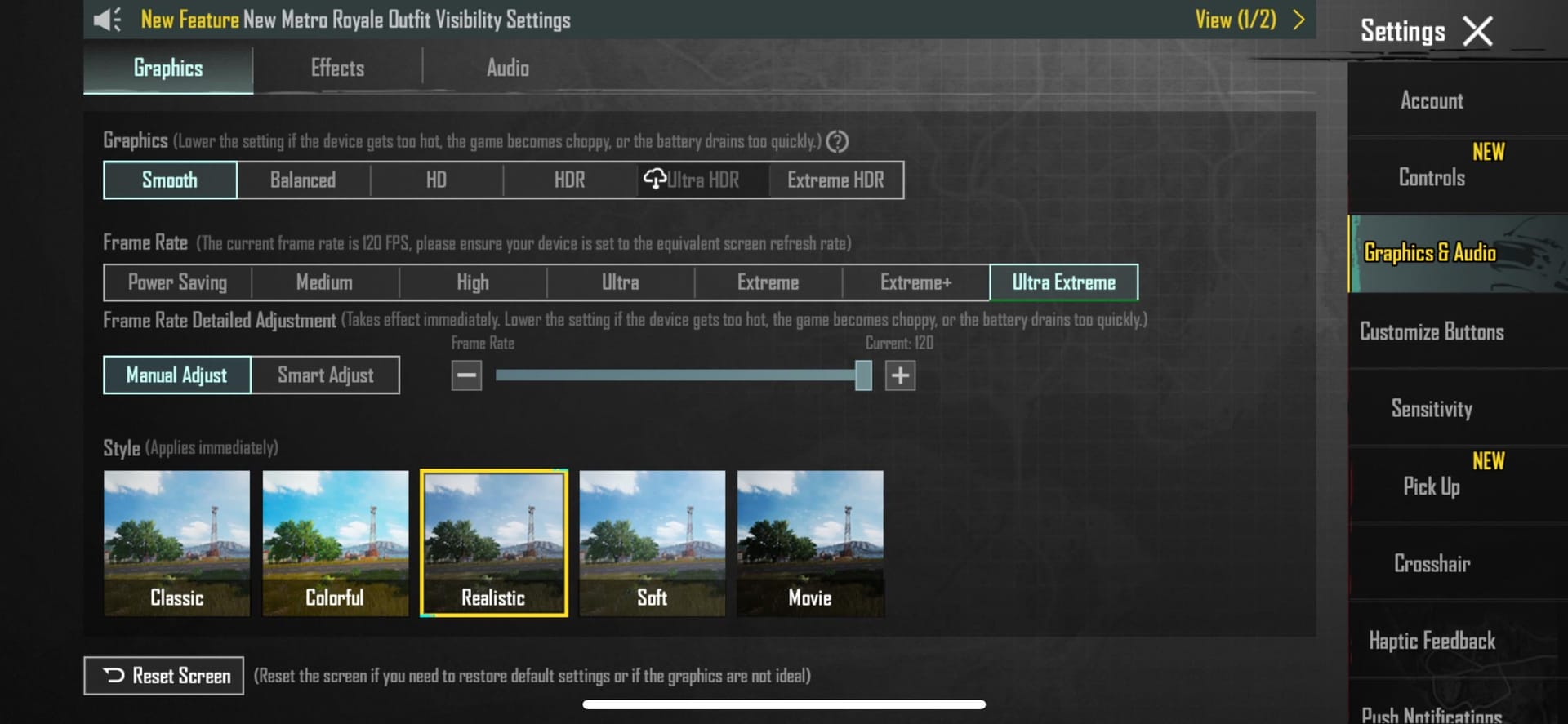
Disabling Shadows and Anti-Aliasing alone recovers 8–20 FPS and meaningfully reduces GPU load. These are the two highest-cost visual features in PUBG Mobile's rendering pipeline — and neither provides a visibility advantage that justifies the frame cost.
Pro tip: Many players leave Anti-Aliasing on assuming it sharpens enemy outlines. At Smooth quality, resolution is already low enough that AA adds GPU overhead without visible clarity gains. Disabling it is a pure performance win with zero competitive downside.
System-Level Checklist Before Every Session
- Set display refresh rate to 120Hz manually — don't rely on auto-switching
- Limit background processes to 2–3 apps via Developer Options
- Disable in-game voice chat to recover 2–5% CPU capacity
- Maintain at least 5GB free storage — fragmented or near-full storage causes asset-loading stutters
- Set screen brightness to 70–80% to reduce thermal output without hurting visibility
iOS note: On ProMotion-display devices, enabling screen recording forces consistent 120Hz output — a known workaround for devices that otherwise downclock the display during sustained gaming.
Android System Optimizations
Enable Performance Mode
Most Android skins in 2026 include a dedicated Game or Performance Mode:
- One UI: Battery settings → High Performance
- HyperOS / MIUI: Game Turbo handles CPU prioritization automatically when PUBG Mobile is added to the game list
- OxygenOS: Enable Pro Gaming Mode for sustained clock speeds
These modes prevent aggressive CPU downclocking during the first 60 seconds of a match — a period when many mid-range devices are still ramping up thermal management.
RAM and Storage Management
- Kill all social media, streaming, and navigation apps before launching
- Clear PUBG Mobile's cache weekly: Settings → Apps → PUBG Mobile → Storage → Clear Cache
- Keep internal storage 5GB+ free at all times
- On 4GB RAM devices, close the game launcher itself after PUBG Mobile loads
Overheating Prevention: Physical and Environmental Fixes
Remove Your Case
Removing your phone case improves heat dissipation by 15–20%. Most cases — especially thick TPU or leather designs — trap heat against the back panel where the SoC sits. This single change can delay throttling onset by several minutes per session.
Gaming Coolers: What Actually Works
External cooling fans reduce operating temperatures by 10–20°C — the most impactful single hardware addition for sustained 120 FPS.
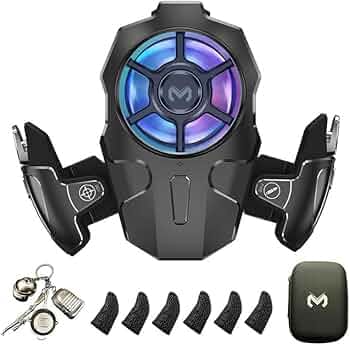
Semiconductor (Peltier) coolers outperform fan-only models but draw power from the device. If using a USB-C cooler, verify it doesn't add net heat — some budget models do.
Environmental Factors
- Avoid direct sunlight — ambient heat accelerates throttling
- Hold the device in landscape with the back panel exposed to airflow, not pressed against a surface
- Room temperature above 28°C measurably increases throttling frequency — a fan directed at your play area helps
For players serious about competitive performance, buy PUBG Mobile UC global fast through buffget — fast delivery, secure transactions, and consistently high user ratings make it a trusted choice for the PUBG Mobile community.
Chipset-Specific Tips
Snapdragon 695 and 778G
Both chips can unlock Ultra Extreme but need the most aggressive thermal management. On Snapdragon 695 (Adreno 619), cap Effects at Low and disable Shadows unconditionally — the 619 hits its thermal ceiling faster than the 778G's Adreno 642L. On 778G devices, you can experiment with Effects at Medium without significant throttling in the first 15 minutes.
Dimensity 7200 and 8050
MediaTek's HyperEngine provides intelligent frame-rate stabilization that benefits PUBG Mobile directly. Dimensity 8050 devices sustain 120 FPS for 20–25 minutes before needing cooling interventions — noticeably longer than comparable Snapdragon mid-range chips.
Snapdragon 7s Gen 2
The current mid-range performance ceiling for sustained 120 FPS. Improved power efficiency over the 695/778G means it reaches 42°C more slowly. Recommended config: Smooth + Ultra Extreme with Effects at Low — a step above what older mid-range chips can sustain.
RAM Tier Impact
- 4GB RAM: Strict background management required; 120 FPS achievable but fragile
- 6GB RAM: Comfortable headroom with standard optimizations
- 8GB RAM: Meets official minimum spec; most stable configuration tier
Which Config Wins for Competitive Play
Smooth + Ultra Extreme vs. Balanced + High
Smooth + Ultra Extreme delivers consistent frame delivery at the cost of visual fidelity. Balanced + High looks better but caps at 60 FPS on most mid-range devices and introduces GPU load spikes during heavy combat.
For competitive ranked play on Erangel and Miramar — where long-range engagements and recoil control matter — Smooth + Ultra Extreme is the correct choice. The 12–18% target tracking improvement at 120 FPS outweighs any visibility benefit from higher-quality textures. For casual TDM where visual experience matters more, Balanced + High is a reasonable alternative.
The 2026 Pro Player Meta
Competitive players consistently prioritize frame consistency over peak FPS. A locked 90 FPS with zero drops beats 120 FPS that stutters to 60 FPS mid-firefight. If your device can't sustain Ultra Extreme without throttling, dropping to Extreme (90 FPS) with the same Smooth + disabled Shadows config is the strategically correct call.
Weekly Maintenance Routine
Weekly:
- Clear PUBG Mobile app cache
- Verify game files: Settings → Basic → Repair
- Clear storage to maintain 5GB+ free space
After every major update:
- Re-verify graphics settings — patches occasionally reset configurations
- Test your config in TDM before returning to ranked play
- Check if new chipsets have been added to the Ultra Extreme whitelist
Monthly:
- Review battery health (Settings → Battery → Battery Health on supported devices)
- Battery capacity below 80% causes voltage instability that directly impacts sustained GPU performance
FAQ: PUBG Mobile 120 FPS on Mid-Range Phones
Q: Can I unlock 120 FPS without root or third-party tools? Yes. If your device meets the hardware requirements — 120Hz display, 8GB RAM, UFS 3.1 storage, supported chipset — Ultra Extreme appears natively in the Frame Rate menu. No root required as of the January 2026 4.2 update.
Q: Does 120 FPS give a real competitive advantage? Measurably yes. Frame time drops to 8.3ms, input lag reaches 28–35ms, target tracking improves by 12–18%, and recoil control improves by 15–22% versus 60 FPS. Most impactful in close-range engagements on Livik and Sanhok.
Q: My phone still overheats after applying all these settings. Why? If overheating persists after disabling Shadows, Anti-Aliasing, and Effects, the issue is likely physical or environmental. Confirm you've removed your case, aren't playing in direct sunlight, and aren't charging while playing. If temperatures still exceed 42°C, an external cooler delivering 10–20°C reduction is the most effective next step.
Q: Should I charge while playing at 120 FPS? No. Charging creates a dual heat source that accelerates throttling. A 5000mAh battery provides 3–4 hours of continuous 120 FPS gameplay. Play above 30% battery and charge between sessions.
Q: Why does PUBG Mobile stutter in the final circle even with these settings? Almost always thermal throttling, not a configuration failure. After 20–30 minutes of sustained 120 FPS rendering, internal temperatures cross 42°C and the processor reduces clock speeds. An external cooler is the most reliable fix for late-game stability.
Q: Will these settings survive the next major update? Core settings — Shadows off, Anti-Aliasing off, Smooth + Ultra Extreme — are stable across patches. But major updates occasionally reset graphics configs or adjust the Ultra Extreme device whitelist. After every significant patch, verify your settings in TDM before returning to ranked play.