

Recommended Discounts

Bigo Live Diamonds
Top up Bigo Live Diamonds in seconds! Just enter your Bigo Live user ID, select the value of Diamonds you wish to purchase, complete the payment, and the Diamonds will be added immediately to your Bigo Live account.
47.57% OFF
Related articles


Bigo Live OBS Studio: XLR Audio Setup for Musicians
Log into the Bigo Live website → Settings → enable OBS Streaming → copy your RTMP Server URL and Stream Key into OBS's Custom service output. For pro music broadcasting: route XLR through an audio interface, set OBS to 48kHz, apply noise gate and compressor filters, and target 2,500–8,000 kbps bitrate based on your upload speed.
Buffget
Why Musicians Need OBS Studio for Bigo Live
The native Bigo Live app handles casual streaming — but offers zero control over audio processing, scene management, or visual branding. For musicians whose gift revenue depends on sound quality, that's a dealbreaker.
OBS fills the gap completely: multi-source audio routing, custom overlay layers, scene transitions, and encoder-level control the native app can't touch.
And here's the foundational truth: a pixelated video with clean, warm vocal audio will outperform crisp 1080p with hollow, echo-prone sound every time. Audio is what retains viewers and drives gifts.
Minimum system requirements: Windows 7+ with 4GB RAM. Below this, OBS struggles with real-time encoding alongside audio processing — expect dropped frames and latency spikes mid-performance.
The XLR Audio Chain for Bigo Live OBS Setup
How the Signal Flows
XLR mic → XLR cable → audio interface → USB → computer → OBS → Bigo Live stream.
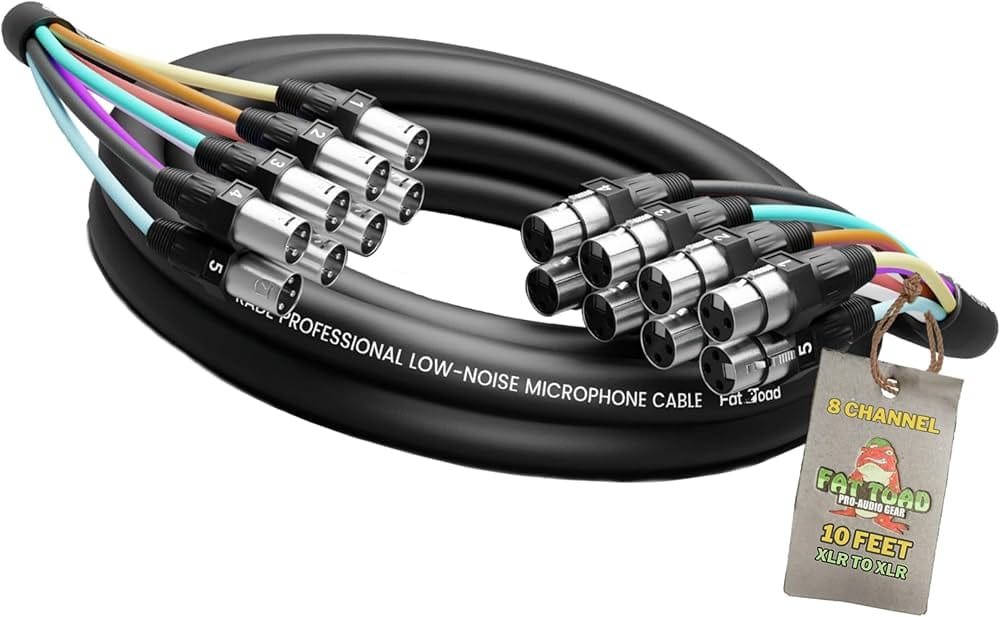
Skipping the interface and using USB-only removes hardware-level gain staging, phantom power for condenser mics, and low-latency monitoring. All three are essential for live music.
Budget Allocation for Music Broadcasters
Professional Bigo Live music broadcasters allocate budgets this way:
- 50% — audio equipment
- 25% — video
- 15% — lighting
- 10% — accessories
This reflects how directly audio quality impacts viewer retention and gift revenue.
Practical cost ranges:
- Entry-level XLR setup (mic + interface): $200–$400 — solo vocalists starting out
- Professional XLR setup (pro mic + mixer): $500–$900 — musicians building a broadcast brand
Configuring Your Interface in OBS
- Connect interface via USB
- Open OBS → Settings → Audio
- Set your interface as the primary Mic/Auxiliary Audio device
- Set Sample Rate to 48kHz — Bigo Live's encoding pipeline expects this. Using 44.1kHz introduces resampling artifacts that degrade vocal clarity over long sessions
- Set Channels to Mono for solo vocalists (concentrates signal strength across all listener devices); Stereo for full-band or instrumental performances
Step-by-Step: Routing XLR Audio in OBS
- Connect XLR mic to Channel 1 of your audio interface
- Connect interface to PC via USB
- OBS → Settings → Audio → set Sample Rate to 48kHz, Channels to Mono or Stereo
- Under Mic/Auxiliary Audio, select your interface from the dropdown
- Close Settings → right-click the Audio Mixer → select Advanced Audio Settings
- Set interface input to Monitor and Output for real-time monitoring
- Set hardware gain so OBS meters peak between -12dB and -6dB — preserves headroom without clipping
Don't push gain into yellow or red. Clipping on a live music stream is irreversible and immediately signals amateur production to your audience.
OBS Audio Filters for Live Music on Bigo Live
Right-click your audio input in the mixer → Filters. Apply in this order:
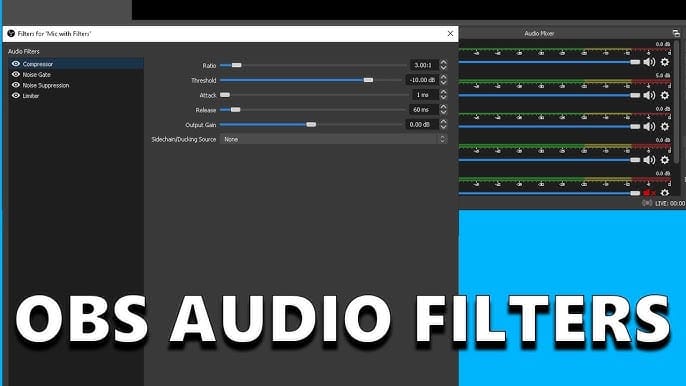
- Noise Gate: Close threshold -32dB, open threshold -26dB. Silences room noise between phrases without cutting soft vocal passages
- Noise Suppression: Use RNNoise (not Speex) — far more transparent on music, avoids metallic artifacts on sustained notes
- Compressor: Ratio 3:1, attack 10ms, release 60ms. Controls dynamic peaks without squashing performance expressiveness
- EQ: High-pass filter at 80Hz (removes low-end room rumble) + gentle 2–3dB boost around 3kHz (adds presence and intelligibility)
Pro tip: Don't stack too many filters. Over-processing makes vocals sound artificial and fatiguing across a 60-minute broadcast.
Connecting OBS to Bigo Live: RTMP Configuration
Finding Your Stream Credentials
- Log into the Bigo Live website (not the mobile app)
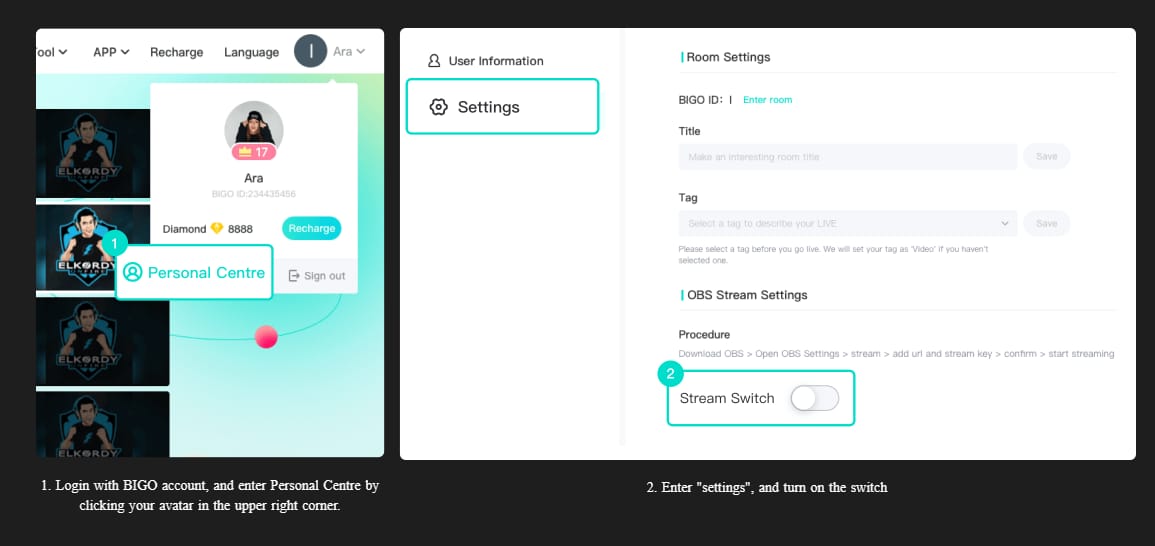
- Click your profile avatar (upper right)
- Go to Settings
- Enable OBS Streaming
- Copy the Server URL
- Copy the Stream Key
Never share your stream key publicly — anyone with it can broadcast to your channel.
Entering Settings in OBS
- OBS → Settings → Stream
- Set Service to Custom
- Paste Server URL into the Server field
- Paste Stream Key into the Stream Key field
- Click Apply → OK
Test Before You Go Live
Run a 2–3 minute private test stream before every performance. Check View → Stats and confirm dropped frames stay below 0.5%. Higher means a connection or encoding issue that'll hurt your live show.
For musicians rewarding loyal fans during performances, Bigo Live Diamonds fast recharge by ID through buffget offers competitive pricing, instant delivery, and secure transactions — no stream momentum lost.
Optimal OBS Encoding Settings for Bigo Live
Bitrate by Resolution and Upload Speed
- 720p / 30fps: 2,500–4,000 kbps → requires 5 Mbps upload
- 720p / 60fps: 4,500–6,000 kbps → requires 8 Mbps upload
- 1080p / 30fps: 4,500–6,000 kbps → requires 8 Mbps upload
- 1080p / 60fps: 6,000–8,000 kbps → requires 12 Mbps upload
5 Mbps upload is the minimum baseline. Switch Wi-Fi to ethernet — this single change eliminates packet loss spikes that cause audio dropouts mid-performance.
x264 vs NVENC
- x264 produces better visual quality at equivalent bitrates, especially for instrument textures and facial detail. But at medium/slow presets it competes with your audio processing chain for CPU
- NVENC is the practical choice if your GPU supports it and your CPU is simultaneously running audio filters and a DAW
In practice: use NVENC for CPU-heavy setups, x264 at veryfast preset if you have a powerful CPU and want maximum visual fidelity.
Resolution and Frame Rate
- Canvas: 1920×1080
- Output: match to 1080p or 720p based on upload speed
- 30fps is sufficient for vocal-focused streams; 60fps adds value for instrumental performances with significant physical movement
Building Professional Overlays in OBS for Bigo Live
Adding Browser Source Overlays
- In your OBS Scene → click + under Sources → select Browser
- Enter your overlay URL
- Set width 1920, height 1080
- Check Shutdown source when not visible to preserve CPU
Recommended overlay elements for music broadcasters:
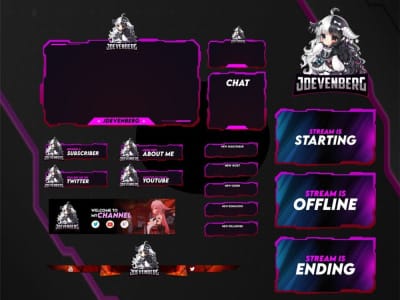
- Animated frame/border around your camera feed
- Now Playing bar showing current song title and artist name
- Logo/watermark in a corner for brand recognition
- Social handle lower-third appearing between songs
Gift Alert Overlays
Gift alerts acknowledge generosity in real time — which directly encourages more gifting. Configure a browser source pointed at your alert widget URL, position it upper-center, and set display duration to 4–6 seconds per alert. Route alert audio through OBS's Desktop Audio channel, not your mic input, so it doesn't interfere with your vocal signal.
Scene Collection Strategy for Music Shows
A professional music broadcast needs at minimum four scenes:
- Intro Scene: Animated countdown or logo reveal, background music, no live camera
- Live Performance Scene: Full camera, overlays active, audio filters on, gift alerts enabled
- Break Screen: Static or animated graphic with return timer, mic muted
- Outro Scene: Thank-you graphic, social links, replay highlight if available
Assign hotkeys to each scene (Settings → Hotkeys) for instant switching without touching the mouse mid-performance. Use Fade or Cut transitions — stinger transitions add polish but require additional CPU overhead.
For broadcasters and fans keeping energy high throughout every live set, discount Bigo Beans online delivery via buffget is fast and reliable.
Troubleshooting OBS-to-Bigo Live Issues
Audio latency / video sync drift Apply a 100–300ms Sync Offset to your video source via Advanced Audio Settings. Start at 100ms, adjust by ear until audio and video align.
Dropped frames Diagnose in order:
- Switch to ethernet if on Wi-Fi
- Lower bitrate by 500 kbps increments until drops stop
- Switch from x264 to NVENC to reduce CPU load
Distorted XLR audio Input gain is too high at the interface level — clipping before OBS receives the signal. Reduce hardware gain until the interface's clip indicator stops lighting, then compensate with OBS's input volume slider.
Noisy video / digital grain You need 300+ lux of lighting for clean camera output. Digital noise from underlit scenes increases encoding complexity and consumes bitrate that should go to audio fidelity.
How Audio Quality Drives Bigo Live Growth and Gifts
Audio quality is the single highest-leverage investment a Bigo Live music broadcaster can make. Viewers who hear you clearly stay longer. Longer watch time signals the algorithm to surface your stream to new audiences. More visibility means more gifts, which directly lifts broadcaster rank.
The 50% audio budget allocation isn't arbitrary — it reflects measurable ROI in viewer retention and gift conversion.
Broadcaster rank is influenced by gifting frequency, session duration, and viewer return rate. All three improve when clean, processed audio removes friction from the listening experience.
FAQ
Q: How do I connect OBS Studio to Bigo Live? Log into the Bigo Live website → Settings → enable OBS Streaming → copy Server URL and Stream Key → paste into OBS under Settings → Stream with Service set to Custom.
Q: What bitrate should I use for Bigo Live music streaming? 2,500–4,000 kbps for 720p/30fps (5 Mbps upload); 4,500–6,000 kbps for 1080p/30fps (8 Mbps upload); 6,000–8,000 kbps for 1080p/60fps (12 Mbps upload).
Q: How do I fix audio delay in OBS when streaming to Bigo Live? Apply a 100–300ms Sync Offset to your video source in Advanced Audio Settings. Start at 100ms and increase until audio and video align.
Q: What OBS audio filters work best for live singing? Apply in order: Noise Gate (close -32dB, open -26dB) → RNNoise Suppression → Compressor (3:1 ratio, 10ms attack, 60ms release) → EQ with 80Hz high-pass filter. Don't over-stack.
Q: Do overlays slow down my Bigo Live stream in OBS? Minimal impact if you enable Shutdown source when not visible. If CPU usage exceeds 80% during streaming, switch animated overlays to static PNG overlays.
Q: Can I use an XLR microphone with Bigo Live without OBS? No. XLR mics require an audio interface to convert analog to digital. Without OBS and an interface, XLR audio can't route to Bigo Live — the native app only supports USB or built-in mic inputs.