

Recommended Discounts
_37751.webp)
Honor of Kings Global
Official Automatic Top-up!! And get extra 100% tokens bonus on first top-up!
44.35% OFF
Related articles


Honor of Kings Lag Fix: Reduce Ping from 200ms to 50ms
High ping in Honor of Kings is fixable. Green indicators = sub-50ms (optimal), yellow = 50–100ms (playable), red = above 100ms (ranked-breaking). Fastest proven fixes: enable the built-in Network Optimization toggle (cuts latency 30–50%), switch DNS to 1.1.1.1, use 5GHz WiFi or wired Ethernet, and avoid peak hours (7–10 PM). Combined, these can drop ping from 200ms+ to sub-50ms.
Buffget
What High Ping Actually Costs You
At 80ms+, skill shots from precision-dependent heroes miss targets that have already moved server-side. Dash abilities register late, leaving you visually displaced from your actual position. In 5v5 team fights — where ability windows run 200–300ms — even 60ms delay means kills become deaths.
The game's interpolation system compensates for latency, but only to a point. Beyond that threshold, rubber-banding, teleporting enemies, and missed CC locks become consistent problems.
Ping Benchmarks
- Sub-30ms — Pro-level. Near-instant input registration
- 30–50ms — Excellent for ranked. No perceptible delay
- 50–80ms — Playable casual. Minor lag on fast-reaction heroes
- 80–120ms — Unreliable skill shots and dashes in competitive play
- 120ms+ — Consistent mechanical disadvantage in ranked
Enable the overlay at Settings > Display > Performance Display: green below 50ms, yellow 50–100ms, red above 100ms. Also watch for packet loss above 1% and jitter above 20ms — both cause stuttering that raw ping numbers don't explain.
Heroes Most Hurt by High Latency
Li Bai, Diao Chan, Sun Ce, and Marco Polo suffer most. Li Bai's sequential dashes require each command to round-trip to the server before the next registers — nearly unplayable above 80ms. Diao Chan's follow-up window (under 500ms) collapses entirely at 100ms+. If you main these heroes in ranked, sub-50ms isn't optional.
Core Network Concepts
Four Metrics That Matter
- Ping/Latency: Round-trip time to the game server. Lower is always better
- Packet Loss: Even 1–2% causes visible stuttering and missed ability registrations. Target: below 1%
- Jitter: Ping variance over time. A connection averaging 40ms but swinging 20–80ms feels worse than consistent 60ms. Target: under 20ms
- Routing Path: The node sequence between your device and the game server. Longer or congested paths add latency independent of your internet speed
Why Speed Tests Lie
Speed tests measure bandwidth to nearby test servers — not latency to Honor of Kings' specific infrastructure. A 200 Mbps connection with poor ISP routing will produce higher in-game ping than a 50 Mbps connection with optimized routing. Focus on the in-game diagnostics panel, not your ISP's advertised speeds.
For players managing in-game purchases alongside performance, buy HOK Tokens online fast through buffget — secure transactions, competitive pricing, fast delivery for Honor of Kings global recharges.
In-Game Network Settings
Accessing Network Optimization
- Tap your profile icon (top-left)
- Go to Settings > Display > Performance Display — enables live ping, packet loss, and jitter overlay
- Go to Settings > Network > Network Optimization — toggle ON
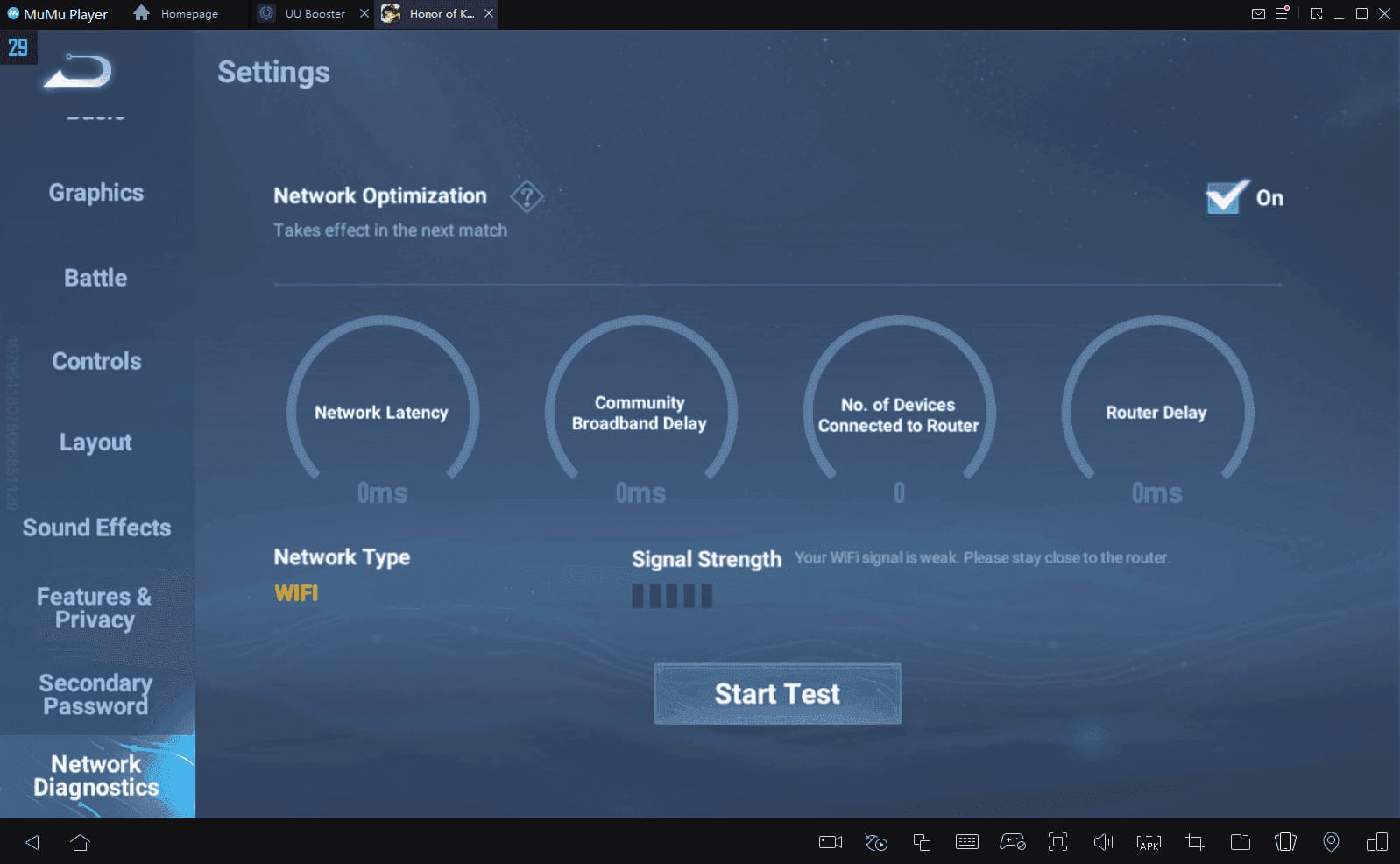
The Network Optimization toggle is the single highest-impact in-game setting. It reroutes your connection through optimized server pathways, documented to reduce latency by 30–50% under congested conditions.
Server Region Selection
Global servers: North America, Europe, Japan, Korea, Southeast Asia, Latin America, Brazil, Turkey. Global infrastructure launched S1 and S6 on June 20, 2025; S7 on June 20, 2025. The IRX update (June 21, 2025) also unlocked 120fps on supported devices.
Always select the server closest to your physical location. SEA players should connect to the SEA server, not the global default. Test adjacent regional servers during off-peak hours — neighboring regions sometimes offer faster routing due to ISP peering agreements.
To access Brazil or Turkey servers: Settings > Your Name > Media & Purchases > Country/Region, select the target region, and use a matching regional network connection.
Reading the Diagnostics Overlay
- Green ping: Sub-50ms — optimal
- Yellow ping: 50–100ms — playable
- Red ping: 100ms+ — act immediately
- Packet loss above 1%: Requires immediate action
- Jitter above 20ms: Unstable path, not just a slow one
Pro tip: If ping is green but you're rubber-banding, check packet loss first. If packet loss is clean but gameplay feels delayed, jitter is the culprit.
Device-Level Optimization
Android
- Wi-Fi settings > Configure DNS > Manual — set primary to 1.1.1.1, secondary to 1.0.0.1
- Tap Renew Lease, restart Honor of Kings
- Settings > Apps > Honor of Kings > Storage > Clear Cache and Data
- Toggle Airplane Mode on, then off — forces fresh network handshake
- Close background apps, disable auto-updates, turn off in-game voice chat
DNS changes alone have cut ping from 250ms to 120ms and DNS query times from 105ms to 31ms — a 70% lookup speed improvement that directly reduces connection establishment latency.
iOS
Same DNS path via Wi-Fi settings. Additionally:
- Keep battery above 50% — iOS throttles CPU and network performance in low-battery states
- Keep device temperature below 35°C — above 40°C triggers thermal throttling that degrades network stack performance
WiFi vs Mobile Data vs Wired
- USB-C Ethernet adapter: Most impactful single hardware change. Documented to reduce ping from 200ms to 30ms by eliminating wireless interference entirely
- 5GHz WiFi: 10–20ms better than 2.4GHz on the same router due to lower interference
- 5G mobile data: Competitive with 5GHz WiFi, improving latency 10–20ms over 4G LTE
- 2.4GHz WiFi: Acceptable for casual play; avoid for ranked
For ranked play, wired is the clear recommendation. Without an adapter, 5GHz WiFi is next best.
Router & ISP Optimization
QoS Setup
- Access router admin at 192.168.1.1 or 192.168.0.1
- Navigate to QoS settings, enable it
- Set Honor of Kings traffic as highest priority
- Reserve 1–2 Mbps dedicated bandwidth for your gaming device
- Enable UPnP for optimal port negotiation
- Update router firmware — outdated firmware introduces packet handling inefficiencies
QoS prevents streaming and downloads from competing with game traffic, directly reducing mid-match ping spikes.
DNS Options Ranked
- 1.1.1.1 / 1.0.0.1 (Cloudflare) — Fastest average DNS resolution globally
- 8.8.8.8 / 8.8.4.4 (Google) — Reliable fallback
- 180.76.76.76 (HTTPDNS) — Optimized for SEA and East Asian server routing
- Private DNS: Use
1dot1dot1dot1.cloudflare-dns.comon Android for encrypted DNS with low overhead
DNS optimization typically yields 20–30ms improvement and eliminates the lookup delay causing initial connection spikes at match start.
Detecting ISP Throttling
ISP throttling has a specific pattern: normal ping during off-peak hours, consistent spikes during 7–10 PM EST, unchanged device and router settings. If ping doubles or triples specifically during evening hours and recovers late at night, ISP routing congestion is the cause — not your device or the game server.
For staying topped up while optimizing performance, cheap Honor of Kings global recharge is available through buffget — fast delivery, competitive rates, reliable service.
Troubleshooting Checklist: Persistent Ping Spikes
Work through this in order — each step isolates a different failure point:
- Check diagnostics overlay — identify whether the issue is ping, packet loss, or jitter
- Switch networks (WiFi ↔ mobile data) — improvement means local network is the problem
- Clear app cache — Settings > Apps > HoK > Storage > Clear Cache and Data
- Toggle Airplane Mode on/off — forces network re-registration
- Check device temperature — above 40°C causes thermal throttling
- Test off-peak — normal before 7 PM but spikes after = server load or ISP congestion
- Switch DNS to 1.1.1.1 and renew lease
- Enable Network Optimization in-game if not already active
Peak Hour Fixes
Peak load: 7–10 PM EST and equivalent regional prime-time windows. If ranked during peak hours is unavoidable: test ping across available servers before queuing, select the least-loaded region, enable Network Optimization, and activate QoS on your router.
Common Myths Debunked
Myth: Closing background apps always fixes lag. Static apps transmit minimal data. Real culprits are active downloads, cloud sync, and simultaneous streaming.
Myth: Faster internet = lower ping. Routing path determines ping, not bandwidth. A 1 Gbps connection with poor ISP routing produces higher ping than 50 Mbps with optimized routing.
Myth: All optimization tools work the same. Standard VPNs route all traffic through a single endpoint, often increasing ping. Dedicated game routing uses intelligent path selection to find the lowest-latency route to specific game servers — fundamentally different results.
FAQ
What ping is acceptable for ranked play? Sub-50ms is excellent. 50–80ms is playable with minor disadvantages. Above 80ms creates consistent skill shot and dash problems. Above 120ms makes ranked competitively unviable.
Why does ping spike only during team fights? Team fights generate burst data — ability animations, positional updates, damage calculations — that can temporarily saturate your connection or trigger ISP throttling. QoS and Network Optimization reduce the impact of these burst events.
Does Honor of Kings have built-in network optimization? Yes. Settings > Network > Network Optimization — toggle it on. Documented to cut ping 30–50% under congested conditions. It's the highest-impact single in-game setting available.
What causes packet loss and how do I fix it? WiFi interference, outdated router firmware, or ISP routing issues. Fix sequence: switch to 5GHz or wired, update router firmware, enable UPnP, clear app cache. Persistent packet loss on a wired connection points to an upstream ISP issue.
WiFi or mobile data — which is better? 5GHz WiFi and 5G mobile data perform comparably. Wired Ethernet via USB-C adapter is definitively best — capable of dropping ping from 200ms to 30ms. Avoid 2.4GHz WiFi for ranked.
Why does my speed test look fine but in-game ping feels high? Speed tests measure bandwidth to nearby servers, not latency to Honor of Kings' infrastructure. Routing path quality — not raw speed — determines in-game ping. Always use Settings > Display > Performance Display for accurate readings.