

Recommended Discounts

IMO Diamonds
Recharge requires a mobile phone number Please include the countrv code with a + sian
10% OFF
Related articles


IMO Multi-Device Sync: Complete Guide for Business 2026
IMO supports simultaneous multi-device login through its built-in Multi-Device feature — one account stays active across smartphones, tablets, and computers at the same time. Enable it under Account & Security on mobile, then link your PC using the official desktop app. This guide covers every step, security setting, and business workflow tip for seamless IMO cross-device syncing.
Buffget
What Is IMO Multi-Device Syncing and Why Business Users Need It
IMO multi-device syncing keeps one account fully functional across several devices simultaneously. With Multi-Device enabled, your phone, tablet, and PC all send and receive messages in parallel — no manual switching, no logging out. With it disabled, signing into a second device immediately kicks out all others.
For remote teams, sales reps, and support agents, single-device access creates real bottlenecks. A rep managing client chats benefits from a full keyboard at their desk while staying reachable on mobile in transit. A support agent handling multiple threads works faster on desktop than on a phone screen.
IMO spans Android, iOS, Windows, and macOS. Its Global Web Call feature (launched September 20, 2023) supports up to nine simultaneous callers per shared link — enough for small team meetings without extra tools.
Three access points, three use cases:
- IMO Mobile (iOS/Android): Primary account anchor. Required for PC desktop linking and SMS verification
- IMO Desktop App (Windows/macOS): Downloaded from IMO's site or Microsoft Store. Best for full workday use
- IMO Web (browser): No installation needed. Best for temporary access on shared or borrowed hardware
For business users who rely on IMO Premium features, IMO Diamonds fast recharge for business is available through buffget with competitive pricing and fast delivery to keep your account running without downtime.
How to Install and Sync the IMO Desktop App on PC or Mac
Download the Official App
IMO for Windows is available through two official channels:
- Direct download from the IMO website
- Microsoft Store (auto-updates managed by OS — preferable for business environments)
A macOS version is also available. Critical prerequisite: the desktop app requires IMO installed and active on your phone. Your mobile app is the authentication anchor — set it up first.
Link Your Account to the Desktop App
- Open the IMO desktop app on your PC
- Enter your registered IMO credentials (same username and password as mobile)
- IMO sends a verification code to your registered phone number
- Enter the code to complete authentication
- Your account is now active on both devices simultaneously
Configure Desktop Notifications
After linking, set notifications so you don't miss client messages or calls:
- Enable desktop pop-ups for new messages
- Prioritize group chats by importance
- Set audio alerts for incoming calls
Pro tip: Don't mirror identical notification settings on phone and desktop — duplicate alerts kill focus. Set desktop as primary during work hours, mobile as primary outside them.
Desktop App vs. Browser: Which Wins for Business?
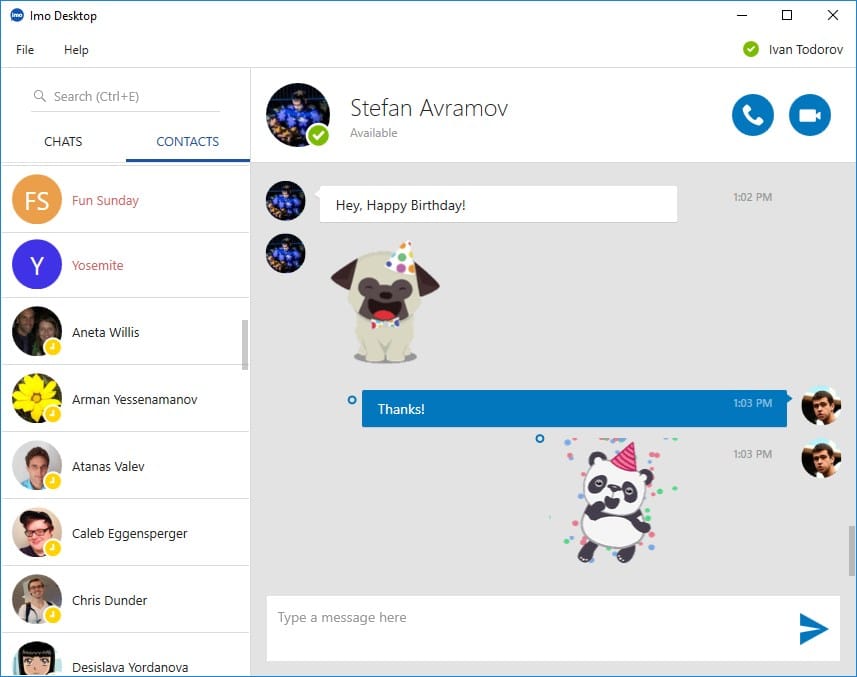
The desktop app consistently outperforms browser access for sustained use:
- Stability: No tab management or cookie expiration issues
- Notifications: Native OS-level alerts vs. browser-permission-dependent ones
- Performance: Faster load times, more reliable media handling
- Resilience: Auto-reconnects after network drops; browser sessions may need manual refresh
Use browser-based IMO as a travel fallback. For daily business use, the desktop app is the clear choice.
How to Use One IMO Account on Multiple Devices Simultaneously
Enable Multi-Device on Mobile
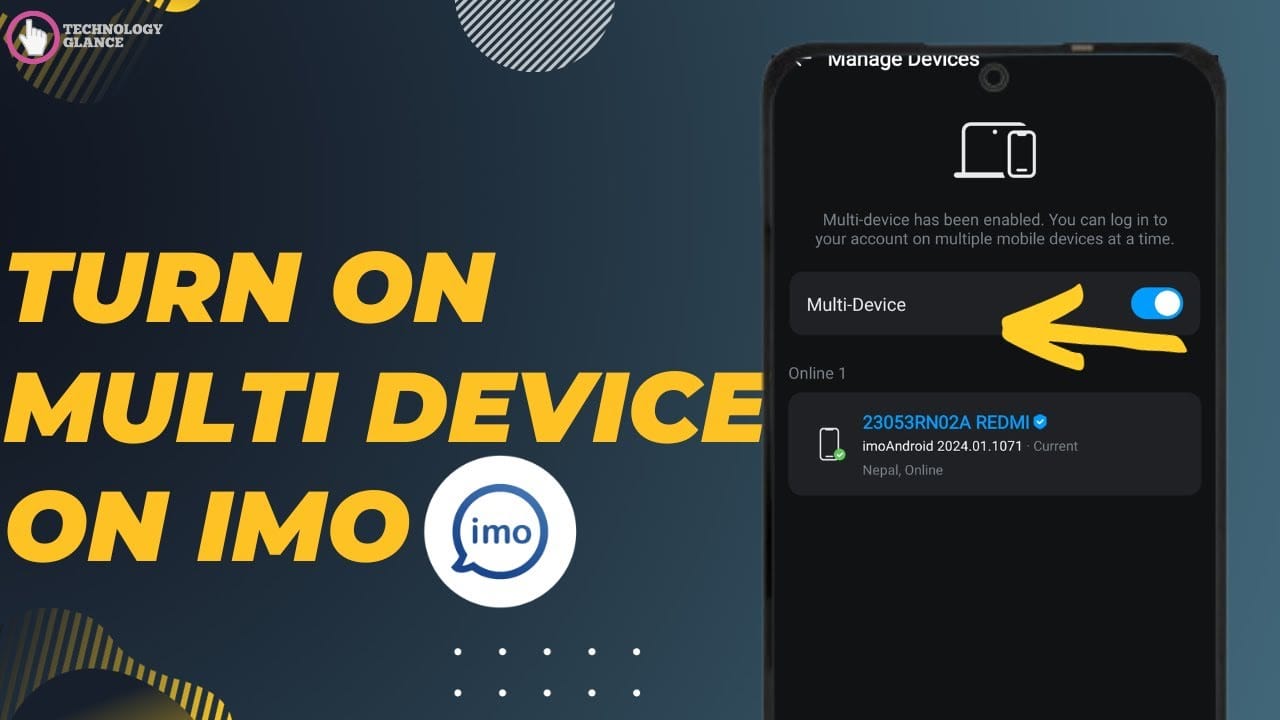
- Open IMO on your primary device
- Tap your profile to open the account menu
- Scroll to Account & Security
- Tap Manage Devices
- Enable the Multi-Device toggle
Log Into a Second Phone
- Sign in on your first (primary) phone
- Open IMO on the second phone and enter the same credentials
- Enter the verification code sent to your registered number
- Both devices now run the same account simultaneously
Need to update which number receives verification codes? IMO offers both Change Number and Add Number options in account settings. The Add Number path is useful for business users maintaining separate work and personal numbers.
For teams that need uninterrupted access, discount IMO premium top up online through buffget delivers fast, secure recharges at competitive rates.
Manage Active Devices
The Manage Devices panel gives full visibility and control over every active session:

- View all currently logged-in devices
- Remove any device to log it out remotely (requires SMS verification)
- Set Trusted Device to streamline future logins from that hardware (replaces the previous trusted device)
Review this panel regularly — especially after using IMO on unfamiliar hardware.
Business Use Cases for IMO Multi-Device Syncing
Remote team coordination: Team members stay reachable on mobile while doing detailed work on desktop. A project manager monitors group chats on PC during focused sessions while their phone handles urgent direct messages.
Sales reps managing client chats: Start a client conversation on mobile during transit, continue it on desktop back at the office — full message history available on both devices, no manual sync needed.
Customer support agents: Desktop's larger screen and keyboard let agents manage multiple simultaneous threads faster than mobile alone. Multi-device means they're never forced to choose between desktop productivity and mobile availability.
IMO Account Security Across Multiple Devices
Remotely Log Out a Lost or Unused Device
- Open IMO on any active device
- Go to Profile → Account & Security → Manage Devices
- Tap the target device → select Remove
- Complete SMS verification
- Device is immediately logged out — even without physical access to it
Security Best Practices for Business
- Always manually log out on shared or public computers — don't just close the app
- Remove the session from Manage Devices afterward
- Never save credentials in shared browser password managers
- Only set Trusted Device on hardware you personally own
- Audit your active device list regularly for unrecognized sessions
- Disable Multi-Device when not actively needed — limits your account's exposure
Troubleshooting IMO Sync Problems
Messages Not Syncing Between Phone and PC
- Multi-Device off: Verify the toggle is active under Account & Security → Manage Devices
- Network issue: Both devices need stable connections for real-time sync
- Outdated app: The PC Chrome extension was last updated March 22, 2022 — update to the latest desktop app version
- Expired session: Re-authenticate with credentials and verification code
- Trusted Device conflict: Reassigning trusted status can temporarily disrupt sync on the displaced device
Duplicate or Missing Notifications
- Duplicates: Reduce notification priority on your secondary device for categories already covered by your primary
- Missing desktop alerts: Check that IMO has OS-level notification permissions in your system settings
IMO Multi-Device Limitations to Know
Don't get caught off guard by these constraints:
- Disabling Multi-Device logs out all secondary devices immediately — not a gradual transition
- Every new device login requires SMS verification — if your registered number is inaccessible, additional logins are blocked
- Trusted Device is singular — setting a new one removes the previous designation
- The desktop app can't function as a standalone anchor — mobile app installation is required
- Removing a device requires a new verification code — keep your registered number accessible
For business continuity, ensure at least one team member always has access to the registered phone number.
Expert Tips to Maximize IMO Multi-Device Productivity
- Designate device roles: Desktop for typed communication, mobile for calls and quick replies. Prevents context-switching fatigue
- Audit your device list monthly: Remove inactive devices to improve security and reduce notification noise
- Use Add Number strategically: Add both work and personal numbers so verification codes always reach an accessible line
- Leverage Global Web Call for team meetings: Nine simultaneous callers per link (since September 20, 2023) handles small team meetings without extra conferencing tools
- Stick to the desktop app for daily work: More stable sessions, better notifications, faster media loading than browser access
- Keep your account in good standing: Active IMO Premium subscription ensures full multi-device functionality without feature restrictions
Frequently Asked Questions
Can I use IMO on phone and PC at the same time without being logged out? Yes. Enable Multi-Device under Account & Security → Manage Devices. Both devices run simultaneously without kicking each other out.
How many devices can connect to one IMO account? IMO supports multi-device login across Android, iOS, Windows, and macOS. The exact simultaneous cap isn't publicly specified. The Manage Devices panel shows all active sessions and lets you remove any individually.
Does my phone need to stay on when I use the IMO desktop app? The mobile app must be installed as a setup prerequisite. But once the desktop session is authenticated, your phone doesn't need to stay actively connected for the desktop session to work.
What happens if I disable Multi-Device while logged into multiple devices? All secondary devices are logged out immediately. Re-enabling it and logging back in requires going through SMS verification again.
How do I log out of IMO on a device I no longer have? Go to Profile → Account & Security → Manage Devices on any active device, tap the target device, select Remove, and complete SMS verification. It's logged out instantly.
Is it safe to use IMO on a shared work computer? It can be — if you manually log out after each session, remove the device from Manage Devices afterward, never save credentials in shared browser storage, and don't set shared hardware as a Trusted Device.
buffget gives business users the tools and resources to master IMO multi-device syncing. Join thousands already maximizing their IMO setup — start optimizing your workflow today.