

Recommended Discounts

IMO Diamonds
Recharge requires a mobile phone number Please include the countrv code with a + sian
10% OFF
Related articles


IMO Privacy Settings: Hide Last Seen & Read Receipts 2026
Quick Answer: IMO gives you full control over Last Seen and Read Receipts through Privacy Settings. Set Last Seen to Nobody, toggle Read Receipts off, and use Blocked Contacts to hide your active status from specific users. Combined with Privacy Chat and end-to-end encryption, IMO version 2026.03.1031 offers one of the most granular privacy configurations in any messaging app. Here's every step.
Buffget
What Last Seen & Read Receipts Actually Share
Last Seen is the timestamp on your profile showing when you were last active. Default settings expose this to everyone with your number — revealing activity patterns, availability windows, and behavioral habits.
The green dot on your profile photo signals you're currently active. Close the app and the dot disappears, but your Last Seen timestamp updates immediately, continuing to broadcast your activity.
IMO's message status system:
- Clock icon — Message sending
- Single tick — Not yet delivered
- Two ticks — Delivered to device
- Round circle — Read by recipient
- Red exclamation — Failed to send
The round circle is IMO's read receipt. Suppressing it is fully achievable through native settings.
Why this matters in 2026: IMO requires 21 privacy-related permissions, 20 data collection permissions, and 14 data sharing permissions. Version 2026.03.1031 (security-scanned clean March 11, 2026) introduced refined controls for both layers.
One hard limit: IMO offers no feature to hide your phone number. Privacy management covers activity signals only.
Step 1: Hide Last Seen Completely (Android & iOS)
Works on Android 5.0+ and iOS. Navigation is identical on both platforms.
- Open IMO → tap your profile icon or **hamburger menu
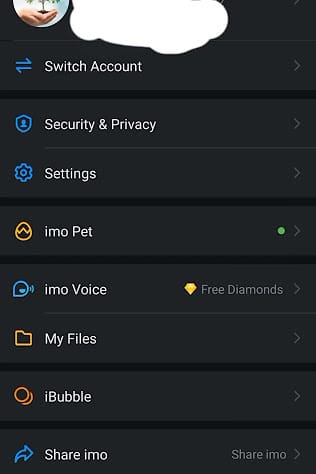
** 2. Go to Settings 3. Select Privacy 4. Tap Last Seen 5. Choose your visibility tier
Takes under 60 seconds. Applies immediately — no restart needed.
The Three Visibility Tiers
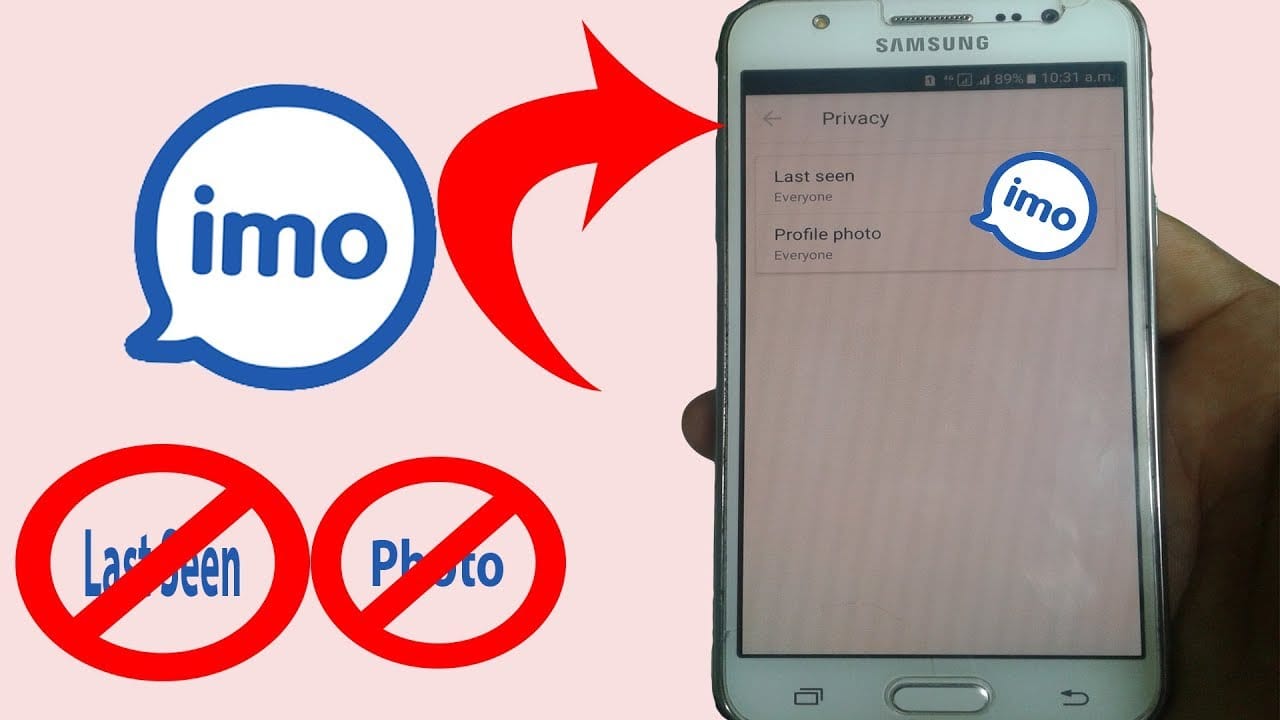
- All Contacts — Anyone with your number sees your timestamp
- Friends — Restricted to mutual contacts only
- Nobody — Completely hidden from all users
For maximum privacy, select Nobody.
What Others See When You Hide It
Contacts see no timestamp — the field simply doesn't appear. IMO doesn't notify anyone when you change this setting. There's no alert, no indicator, no way for another user to confirm you've hidden it versus just not being online recently.
Important: hiding Last Seen doesn't make you appear permanently offline. Your green online dot still shows while you're actively using the app — address that separately in Step 3.
Step 2: Turn Off Read Receipts Completely
Exact Menu Path (2026)
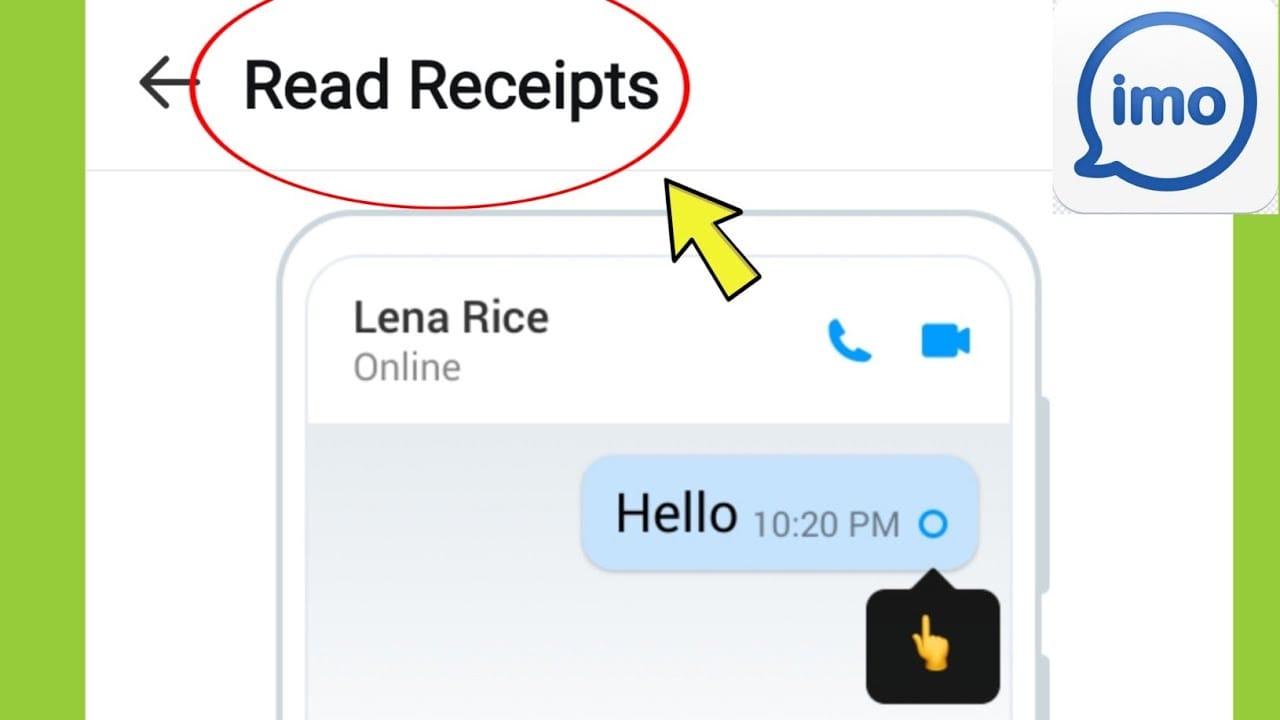
- Open IMO Settings
- Go to Privacy
- Tap Read Receipts
- Set to Nobody
Once set, the round circle no longer appears in any conversation. Recipients see two ticks (delivered) as the final status — they won't know if you've read their message.
The Reciprocal Trade-Off
Disabling Read Receipts is a two-way switch. You also lose the ability to see read receipts from others. IMO applies this setting reciprocally — weigh that before disabling.
Group Chats: Different Rules Apply
Account-level Read Receipt settings primarily govern one-on-one conversations. In group chats, delivery indicators may still function depending on group admin settings. Audit group-specific settings separately if group privacy matters to you.
Reading Messages Without Triggering the Receipt
Native method (recommended): Configure Read Receipts to Nobody before opening the message. Once active, reading any message won't trigger the round circle for the sender.
Workaround: Enable Airplane Mode before opening IMO, read the message offline, then close the app before reconnecting. This prevents read status from syncing to IMO's servers. But the native setting is more reliable for daily use.
Understanding IMO's Three Privacy Tiers
All Contacts — When and Why to Avoid It
Only appropriate when you actively want to signal availability — professional or community contexts where responsiveness is expected. Risk: exposes activity patterns to every contact, including those you don't know well.
Friends — Best for Most Users
Restricts Last Seen to mutual contacts. Maintains social transparency with people you trust while blocking visibility from acquaintances or anyone who added your number without your knowledge. Best balance for everyday use.
Nobody — Full Ghost Mode
Setting both Last Seen and Read Receipts to Nobody creates IMO Ghost Mode — you consume content and respond on your own schedule with zero activity signals leaking out. Trade-off: you also lose visibility into others' Last Seen and read status.
Ideal for high-volume contact lists, professionals needing response flexibility, or anyone managing unwanted contact pressure.
Per-Contact Customization
IMO doesn't offer per-contact Last Seen customization in the standard privacy menu. But you can block specific contacts to hide your active status from them individually:
- Settings → Blocked Contacts, or
- Open a chat → tap contact name → scroll down → Block
- IMO Windows Desktop: right-click the conversation → Remove from Contacts
4 Privacy Mistakes That Still Leak Your Activity
Mistake 1: Hiding Last Seen but leaving online status visible The green dot on your profile photo stays visible to all contacts while you're actively using IMO — regardless of Last Seen settings. Address both signals simultaneously.
Mistake 2: Disabling Read Receipts but ignoring group chats Account-level settings primarily cover one-on-one conversations. Active group chat reading activity may still be visible. Always audit group settings separately.
Mistake 3: Not re-checking settings after app updates IMO updates — including 2026.03.1031 — can reset privacy configurations to defaults. After any update, re-open Privacy Settings and verify every toggle. Takes under two minutes.
Mistake 4: Assuming blocking equals full privacy Blocking hides your online status from one specific user and stops their messages. It doesn't affect how your profile appears to anyone else, and it doesn't suppress Read Receipts or Last Seen globally. It's a targeted tool, not a complete solution.
Advanced: The Power-User Privacy Stack
Combine all of these simultaneously for maximum coverage:
- Last Seen → Nobody
- Read Receipts → Nobody
- Block specific contacts who shouldn't see your active status
- Privacy Chat enabled for sensitive conversations (self-destructing messages with timers in seconds, minutes, or hours)
- Screenshot blocking activated within Privacy Chat
- Password or PIN protection on Privacy Chat
To activate Privacy Chat: open IMO → select a contact → locate Secret Chat or Privacy Chat in the conversation menu.
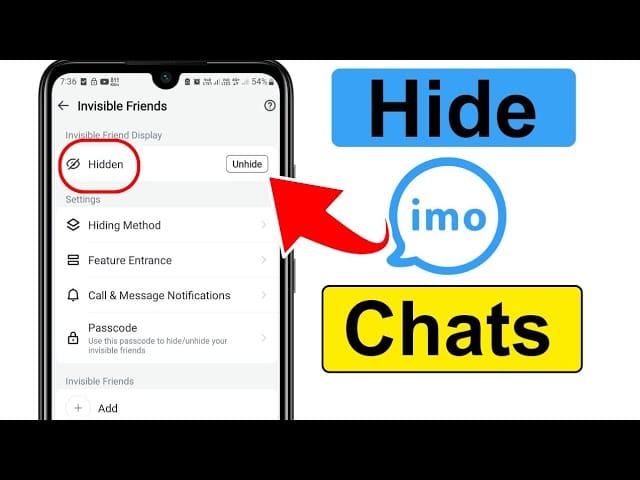
This uses end-to-end encryption that prevents copying, downloading, forwarding, sharing, screenshotting, and recording — IMO's most secure conversation mode.
For users looking to cheap IMO credits top up fast and unlock the full feature set, buffget offers a streamlined recharge process with competitive pricing and fast delivery directly to your IMO account.
IMO Data Retention Context
- Facial data (AI Avatars): retained for 6 months
- Profile photos: destroyed within 1 month of ceasing use
- Deleted accounts: don't appear in search results — the most complete privacy option if you leave the platform
- Privacy Protection Officer: Ivan Wu, 395 Page Mill Road, Suite 100, Palo Alto, California 94306
5-Minute IMO Privacy Checklist (Run After Every Update)
Last Seen
- Settings → Privacy → Last Seen → Nobody (max privacy) or Friends (balanced)
Read Receipts
- Settings → Privacy → Read Receipts → Nobody
Online Status
- Identify contacts who shouldn't see your active status
- Block via Settings → Blocked Contacts
Privacy Chat
- Enable for sensitive conversations via the chat menu
- Activate screenshot blocking + PIN protection
Post-Update Verification
- Re-open Privacy Settings after every IMO update — confirm all values held
- Verify green online indicator behavior matches your expectations
For users who want to top up IMO premium account and access the complete 2026 feature set, buffget provides secure, fast transactions with high user ratings across the IMO recharge category.
FAQ
Does hiding Last Seen make me appear permanently offline? No. It removes your activity timestamp, but the green online dot still shows while you're actively using the app. To minimize online visibility for specific users, use the Blocked Contacts feature alongside Last Seen settings.
Can contacts tell I turned off Read Receipts? No. IMO doesn't notify anyone when you change this setting. Messages simply show two ticks (delivered) as the final status — there's no indicator that read confirmation is disabled.
Why is my Last Seen still showing after I changed the settings? Three common causes: an app update reset your settings to default, app cache is blocking the new setting from applying, or the contact is on an older IMO version. Fix: re-verify settings in Privacy, clear app cache, confirm you're running version 2026.03.1031 or later.
Can I hide Last Seen from specific people only? IMO's standard tiers apply globally (Everyone, Friends, Nobody). For per-contact control, use the Block feature — it hides your active status from that contact individually without affecting visibility to others.
Does turning off Read Receipts affect group chats? Account-level settings primarily govern one-on-one conversations. Group chat read indicators may still function depending on group settings. Review group-specific privacy configurations separately.
How do I read IMO messages without triggering the seen receipt? Two methods: (1) Set Read Receipts to Nobody in Privacy Settings before opening the message — the native, most sustainable approach. (2) Enable Airplane Mode before opening IMO, read offline, then close the app before reconnecting to prevent read status from syncing.