

Recommended Discounts

IMO Diamonds
Recharge requires a mobile phone number Please include the countrv code with a + sian
10% OFF
Related articles


IMO Video Size Limits: Send Large Videos Without Quality Loss
IMO HD supports file transfers up to 10 GB, but videos over 50 MB trigger automatic compression or upload failure. To send large videos without quality loss: keep clips under 50 MB, use MP4 with H.264 encoding, connect via Wi-Fi or 4G/5G, and keep your app updated. iPhone 11+ gets 2K resolution; older devices cap at 1080p.
Buffget
What IMO's Media Sharing Limits Actually Mean
IMO HD gives you 10 GB max file transfer and 25 GB of cloud storage. Those numbers sound generous — but the compression trigger kicks in far earlier than most users expect.
The hard threshold: videos over 50 MB are either compressed automatically or fail to upload entirely. This isn't a soft guideline. It's baked into the app's media pipeline.
A standard 60-second 1080p smartphone clip typically runs 80–200 MB. It will almost certainly be processed before reaching your recipient. The 10 GB ceiling applies to documents and archives — not raw video through the gallery send flow.
Why does IMO compress? The platform operates across 170 countries in 62 languages, handling 300 million video calls daily. Uncompressed transfers at that scale would destroy bandwidth for everyone. The 50 MB threshold is where IMO draws the line between acceptable load and network strain.
How IMO's Compression Works — And What It Destroys
When you send a video over 50 MB, IMO's media processor intercepts it before transmission, re-encodes at a lower bitrate, downscales resolution if needed, and delivers the re-encoded version. This happens server-side — even on a 1 Gbps fiber connection, a 200 MB clip gets compressed before leaving IMO's infrastructure.
What gets sacrificed first:
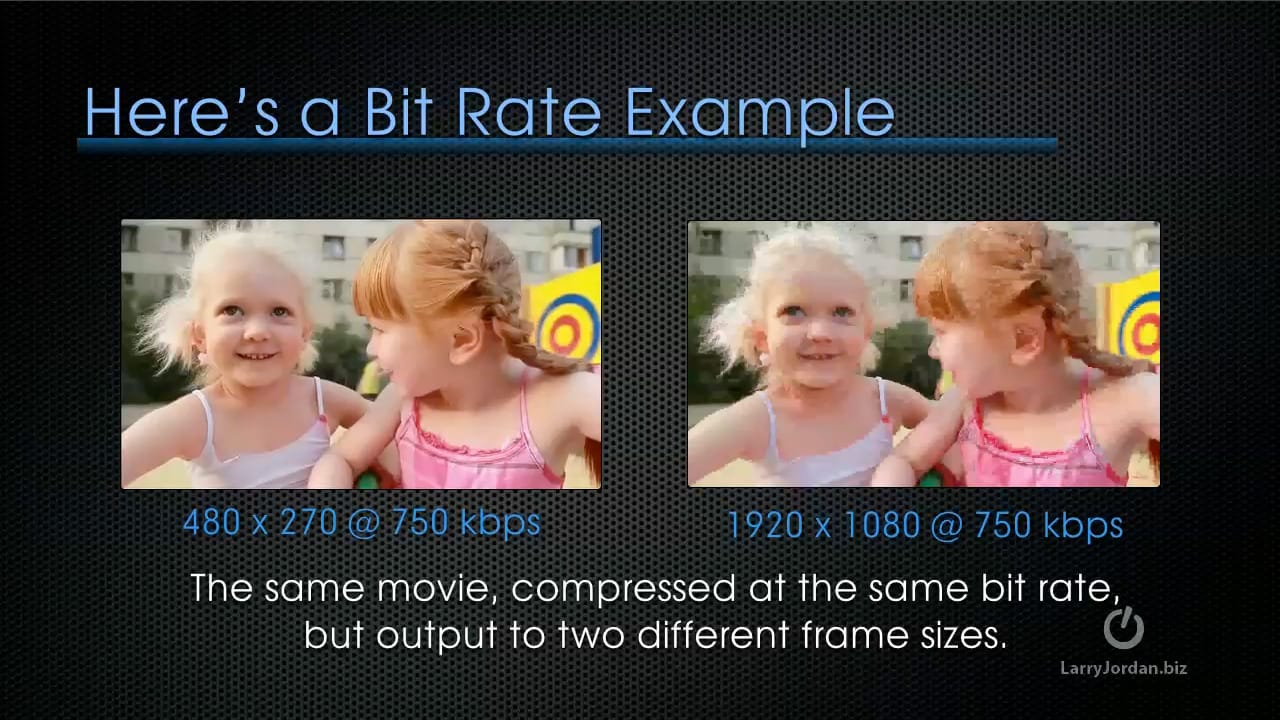
- Bitrate — reduced first, the primary lever for shrinking file size
- Resolution — downscaled if bitrate cuts aren't enough
- Frame rate — may drop on heavily compressed files
- Audio — generally preserved at acceptable levels
The result: a crisp 1080p gaming highlight arrives soft, with visible artifacts in fast-motion sequences — exactly what gamers share most.
Best Video Formats for IMO: Lose the Least Quality
MP4 vs MOV vs MKV
- MP4 (H.264): Most compatible. Processes cleanly, compresses predictably, plays reliably on Android and iOS.
- MOV: Works well between Apple devices. May trigger extra re-encoding steps on Android recipients.
- MKV: Inconsistent handling on IMO. Re-encoding is more likely; playback compatibility varies.
Bottom line: Convert to MP4 before uploading. This eliminates one unnecessary re-encoding layer.
H.264 vs H.265
H.265 (HEVC) delivers smaller files at equivalent quality — but IMO's pipeline is optimized for H.264 across its global device base. Sending H.265 may force a server-side transcode to H.264, adding quality loss that wouldn't occur with a native H.264 source.
For IMO: H.264 MP4 is the safer choice.
Pre-Upload Checklist
- Convert to MP4
- Encode with H.264
- Target 4–8 Mbps bitrate for 1080p
- Keep each segment under 50 MB
- Match resolution to your target (1080p standard; 2K for iPhone 11+)
How to Send Large Videos on IMO Without Compression Loss
Step 1 — Prepare Your File
Split any video longer than ~90 seconds (1080p H.264) into segments under 50 MB. Cut at natural scene breaks — between rounds, at loading screens, at transitions. Label segments so your recipient can reassemble them in order.
Step 2 — Configure IMO Media Quality Settings
- Go to Settings > Media & Storage (or Chat Settings)
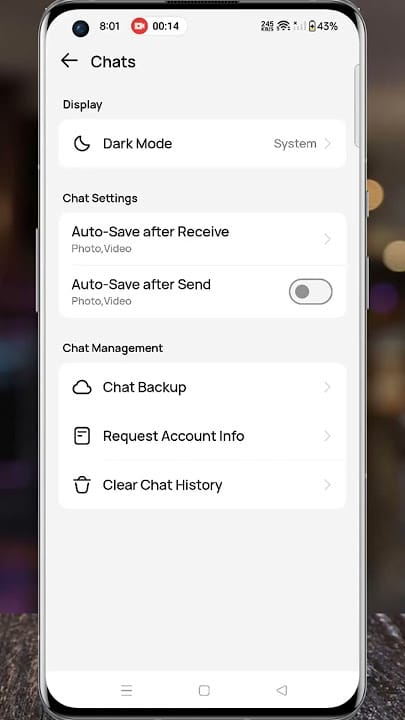
- Enable the highest available quality option for media sends
- Confirm HD mode is active
iPhone 11+ supports 2K video. iPhone X and earlier cap at 1080p. Android users need Android 5.0 or higher for full HD access.
Step 3 — Send the File
- Log in with your phone number and verify via SMS
- Open the target chat
- Tap the + icon in the message input area
- Select Gallery
- Choose your prepared segment
- Wait for the upload progress indicator to complete
Repeat for each segment.
Step 4 — Verify Quality on the Recipient's End
Ask your recipient to check the received file size against your original. A 30–40%+ size reduction means compression occurred. If quality loss is visible, reduce your source bitrate slightly and resend — less aggressive source bitrate gives IMO's processor less reason to re-encode.
IMO HD Settings: Full Configuration by Platform
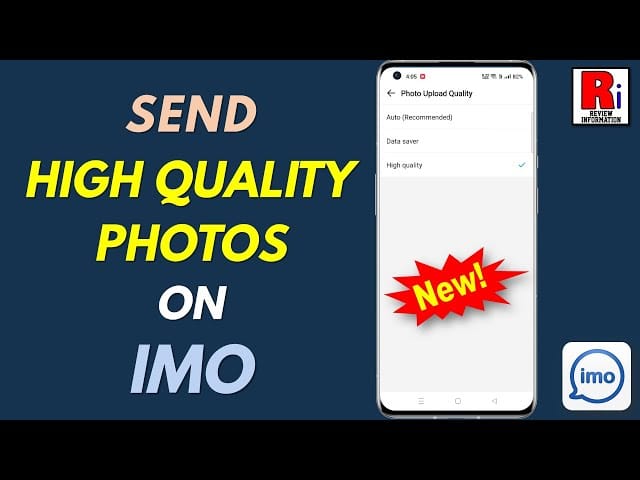
Android (5.0+): Profile icon → Settings > Chats > Media Upload Quality → select highest option. Close background apps before large uploads to prevent mid-transfer failures.
iOS (13.0+) / iPadOS (13.0+):Settings > Privacy & Media > Video Quality → select highest option.
visionOS 1.0+: Media settings follow a similar structure under the app's system preferences panel.
Pro tip: IMO Diamonds cheap top up by phone number is available through buffget — fast, secure account resource management to keep your experience running without interruption.
What HD Mode Actually Does (And Doesn't Do)
Enabling HD mode raises the quality ceiling for calls and media sends. It does not disable the 50 MB compression trigger. Videos over 50 MB will still be processed regardless. HD mode improves what gets delivered — it doesn't bypass delivery processing. Many users miss this distinction.
Practical Workarounds for Large Video Transfers
Splitting: The Most Reliable Method
Keep every segment under 50 MB. For a 10-minute 1080p gaming session at standard smartphone bitrates, expect 6–10 segments. Cut at natural pause points to make reassembly intuitive.
Downscaling Resolution Before Upload
If splitting isn't practical, reduce resolution first:
- 4K → 1080p: ~75% file size reduction, visually sharp on most screens
- 1080p → 720p: Keeps most clips under 50 MB, minimal quality loss on mobile displays
Wi-Fi vs Mobile Data: What Actually Matters
IMO's compression trigger is based on file size, not connection type. But network quality affects upload reliability — weak connections cause mid-transfer failures and corrupted files.
Always use Wi-Fi or strong 4G/5G for video uploads. A stable connection doesn't bypass compression, but it ensures the compressed file arrives intact.
Common Myths — Debunked
Myth: IMO only compresses videos over 100 MB False. The trigger is 50 MB. The 10 GB limit is the platform's maximum supported file size — a completely different parameter from the compression threshold.
Myth: HD mode means zero compression False. HD mode raises quality but doesn't disable the compression pipeline. Videos over 50 MB are still processed regardless.
Myth: Group chats and DMs have the same limits Partially false. The 50 MB threshold applies to both, but group infrastructure adds processing overhead that can affect quality consistency. IMO HD supports groups up to 100,000 members (certain configurations) and group video calls with up to 20 participants (6 in standard group video call mode) — the scale of delivery matters.
Troubleshooting: Still Blurry After All This?
Compression on Send vs. Playback Issue
Compare received file size to your original segment. Sizes match closely → playback issue (recipient's device rendering at reduced quality to save bandwidth). Significant size reduction → compression occurred during transfer.
Ask your recipient to download the file fully before playing — IMO's in-chat player sometimes renders at reduced quality for speed. The downloaded file may be sharper.
Android vs iOS Rendering Differences
On older Android devices or iPhones before iPhone 11, IMO may automatically reduce playback resolution for stability. If your recipient is on an older device, video displays at 1080p maximum regardless of source quality sent.
Network-Related Blur
If blur only appears during in-chat playback (not after downloading), it's almost certainly a network issue on the recipient's end. IMO HD's Zero Noise filter and Light low-light enhancement can also affect perceived sharpness during calls — these are processing features, not compression, and can be toggled in call settings.
Three fixes that resolve most HD quality issues:
- Switch to stronger Wi-Fi or 4G/5G
- Close background apps to free device memory
- Update IMO to the latest version
How buffget Supports Your IMO Experience
For IMO users managing gaming highlights, group content, or premium account features, reliable access to IMO resources keeps everything running smoothly. IMO global Diamond recharge online through buffget offers fast, secure top-ups with competitive pricing and verified delivery.
buffget covers a wide range of games and apps, maintains high user ratings for transaction security, and delivers without friction — so your workflow stays uninterrupted.
FAQ: IMO HD Media Sharing Limits
Q: What's the max video size I can send on IMO without compression? Under 50 MB. The platform technically supports up to 10 GB, but the compression trigger activates at 50 MB for video sent through the standard gallery upload flow.
Q: Does IMO compress all videos, or only large ones? Only files over 50 MB. Smaller clips generally pass through without significant re-encoding, though network conditions and device compatibility can still affect playback quality on the recipient's end.
Q: Best video format for IMO HD sharing? MP4 with H.264 encoding. Processes cleanly, plays consistently on Android and iOS, compresses more predictably than MOV or MKV.
Q: Can I send 4K video on IMO without downgrading? Not reliably. IMO HD supports 2K on iPhone 11+ and 1080p on older models. Export your 4K clip to 1080p MP4 under 50 MB before uploading.
Q: Does IMO notify me when my video is compressed? No. Compare the received file size to your original — significant size reduction confirms re-encoding occurred during transfer.
Q: Does Wi-Fi prevent IMO from compressing my video? No. Compression is triggered by file size, not connection type. But Wi-Fi reduces the risk of failed or corrupted transfers. Always use Wi-Fi or strong 4G/5G for large uploads.