

Recommended Discounts

PUBG Mobile UC (Global)
Official Midasbuy Partner. Get 30% OFF UC Top Up. Not for Japanese / Korean / Taiwan / Vietnam servers. Fast, secure, and the lowest price guaranteed.
29.4% OFF
Related articles


PUBG Mobile 120 FPS Fix: Stop Frame Drops (2026)
PUBG Mobile 3.5 (January 2026) unlocked 120 FPS for mid-range Android devices — but stable performance requires more than flipping a switch. You need a 120Hz+ display, 8GB+ RAM, Android 11+, UFS 3.1 storage, plus the right settings and thermal habits. Here's every proven fix for frame drops and overheating on mid-tier hardware.
Buffget
What 120 FPS Actually Does in PUBG Mobile
Frame rate isn't just a number — it determines how responsive your game feels.
- 60 FPS = 16.67ms frame time, 45–55ms input lag
- 90 FPS = 11.11ms frame time
- 120 FPS = 8.33ms frame time, 28–35ms input lag
That's a 15–25% reduction in input lag versus 60 FPS — directly affecting crosshair tracking and shot registration during recoil bursts.
One caveat: 120 FPS only activates in active combat. Lobbies are capped at 90 FPS regardless of settings.
Supported Devices & Hardware Requirements
Official Requirements (All Must Be Met)
- 120Hz+ display refresh rate
- 8GB+ RAM
- Android 11 or later
- UFS 3.1 storage
- 20GB+ free storage
Confirmed Supported Chipsets
- Snapdragon 870, 8 Gen 2, 8 Gen 3
- Dimensity 9000
Confirmed devices: Samsung Galaxy S22/S23/S24, OnePlus 11/12, iPhone 13/14/15/16 Pro, iPad Pro M1/M2/M4.
If You're on a Mid-Tier Chipset
Snapdragon 695, Dimensity 700, and Helio G99 are not on the 120 FPS whitelist. A stable 90 FPS on these chips outperforms an unstable 120 FPS every time.
Why 120 FPS Is Greyed Out
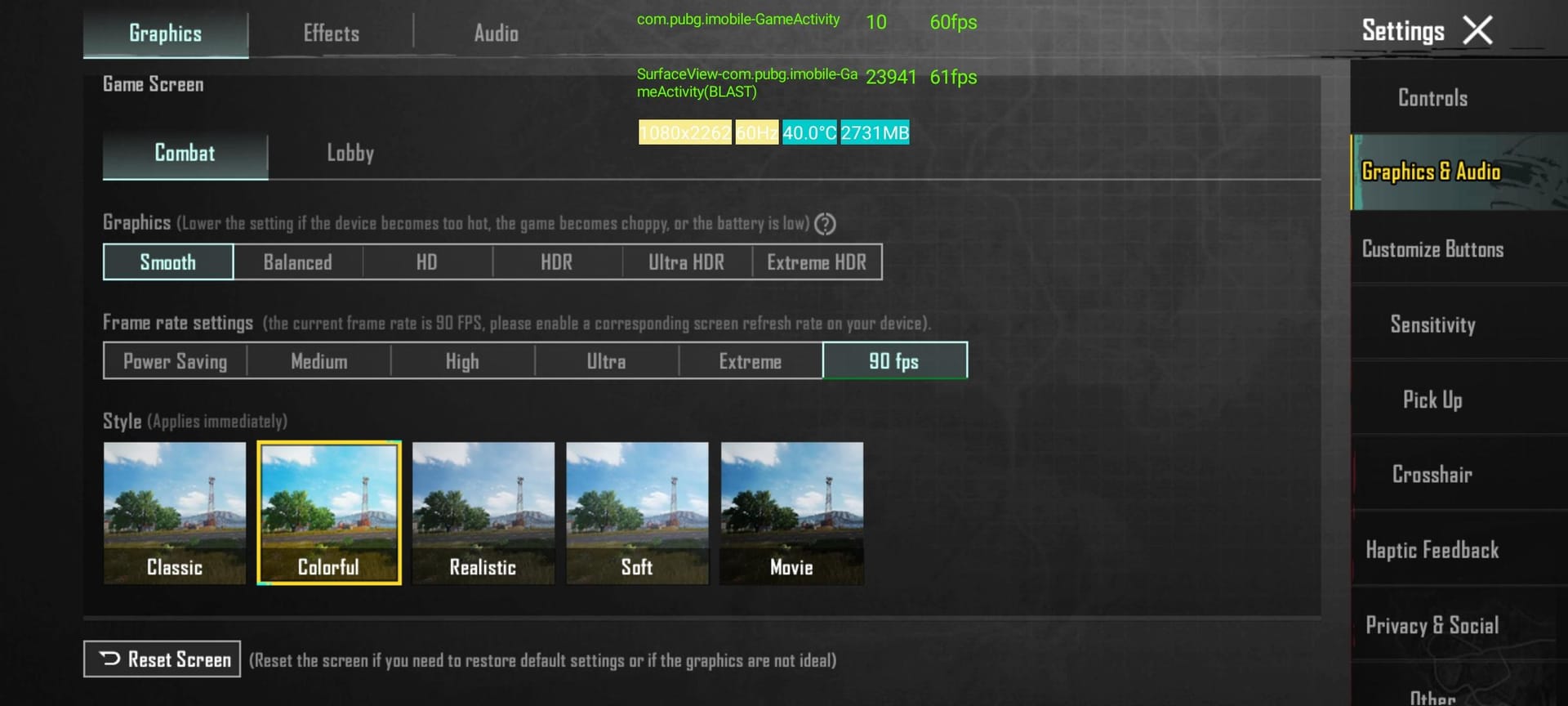
- Chipset not on supported list
- Display refresh rate set below 120Hz in system settings
- Insufficient available RAM
- Android version below 11
Pro tip: Many devices default to 60Hz or 90Hz to save battery. Manually set yours to 120Hz in display settings first.
How to Enable 120 FPS: Step-by-Step
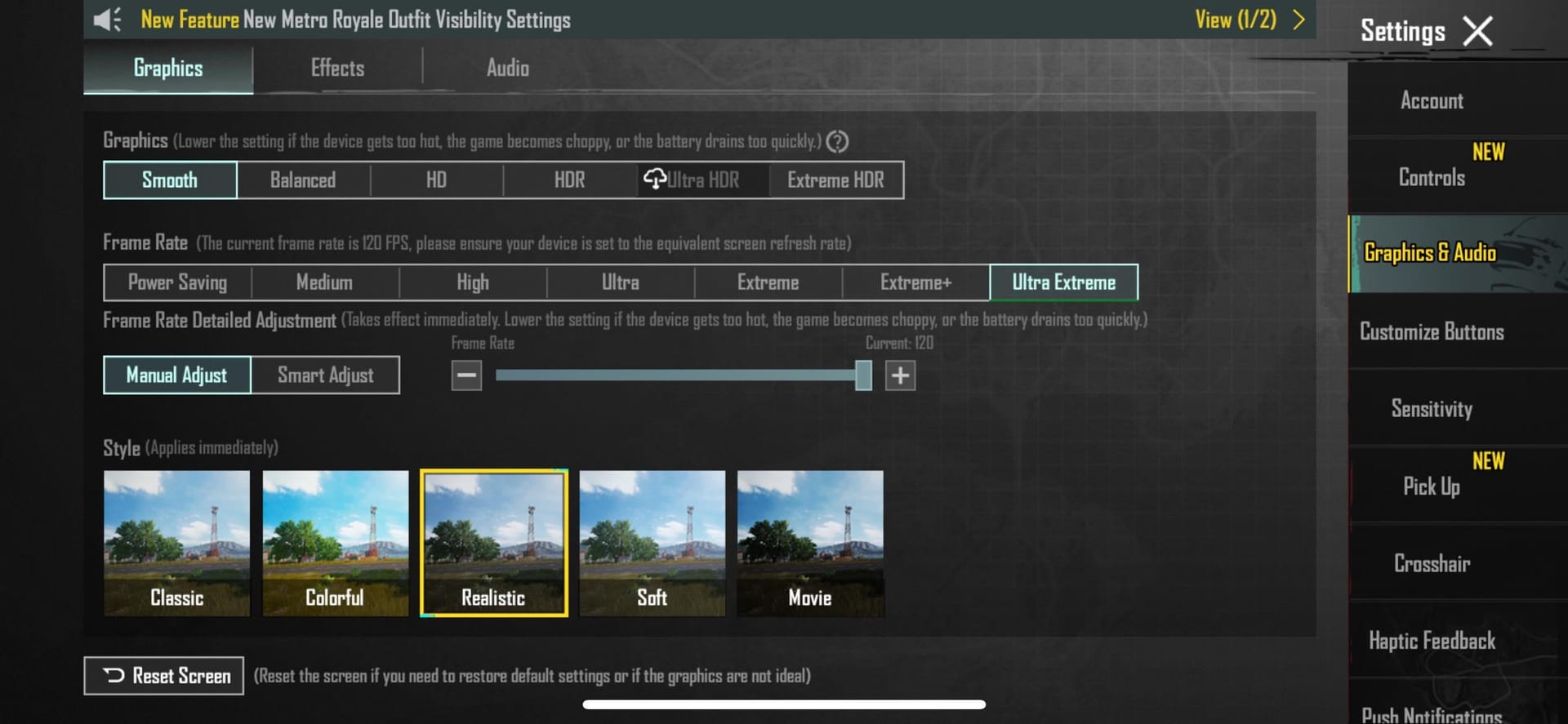
- Open PUBG Mobile → Settings > Graphics
- Set Graphics Quality to Smooth
- Set Frame Rate to Ultra Extreme
- Disable Anti-Aliasing
- Disable Shadows
- Set SFX Quality to Low
- Set Brightness to 125–150% (lower brightness = more thermal headroom)
- Disable in-game microphone and voice chat
- Confirm system refresh rate is 120Hz in Android display settings
iOS extra step: Start a screen recording immediately after selecting Ultra Extreme, then toggle Limit Frame Rate off under Accessibility > Motion. This bypasses the default iOS frame cap.
For UC-funded upgrades and seasonal Battle Pass purchases, safe PUBG UC top up site buffget offers competitive pricing, fast delivery, and secure transactions globally.
Best Graphics Settings for 120 FPS on Mid-Tier Phones
Smooth is the only viable graphics style for 120 FPS on mid-range hardware. It cuts polygon counts by 40% versus higher presets — the single biggest lever for frame stability. Balanced and HDR modes cause thermal throttling within 15–20 minutes on most mid-range chipsets.
Disable These First (In Order of Impact)
- Anti-Aliasing — High GPU cost, minimal benefit during fast movement
- Shadows — One of the heaviest rendering loads in the game
- Auto-Adjust Graphics — When enabled, causes 15–25% frame drop spikes during intense combat by dynamically lowering quality mid-match. Disable it to lock your settings regardless of scene complexity.
Why You're Still Getting Frame Drops at 120 FPS
Thermal Throttling (Primary Culprit)
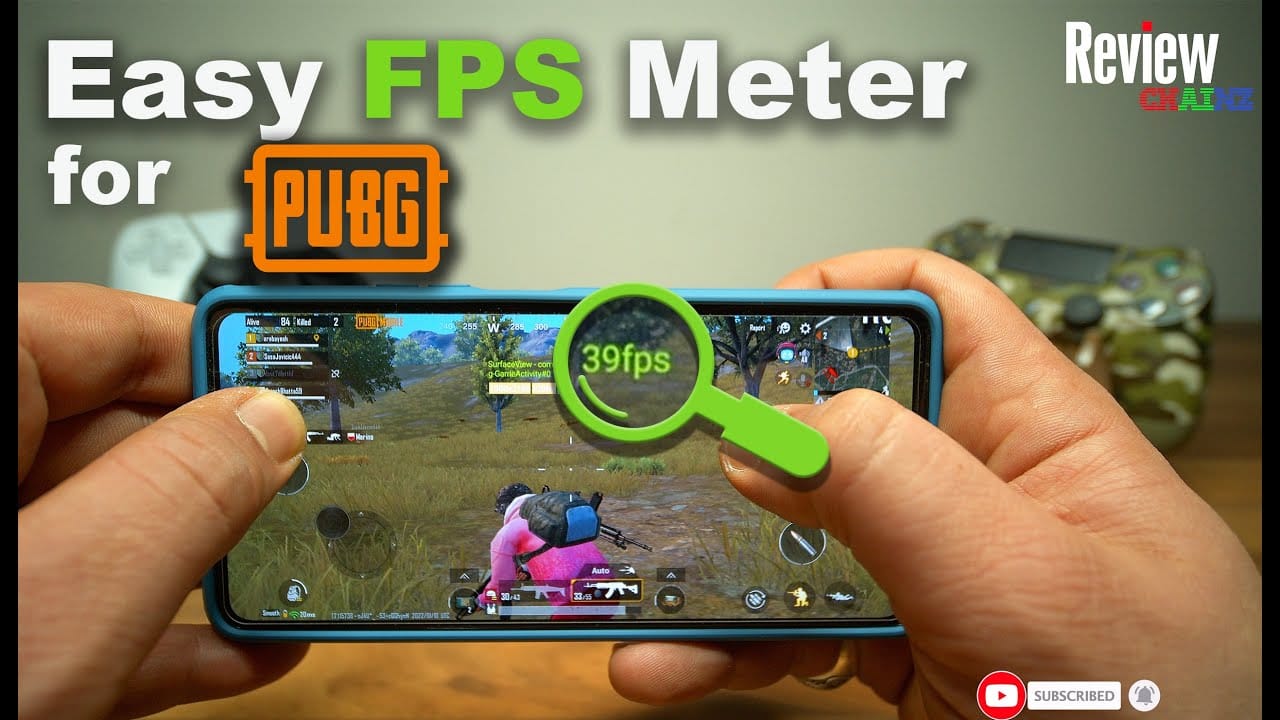
Mid-tier chipsets throttle GPU/CPU when temperature hits 40–45°C. Some newer devices throttle as early as 35°C. When throttling kicks in, frame rate drops from 120 FPS to 60–70 FPS mid-match. This isn't a settings problem — it's a heat problem.
Background Apps & RAM Pressure
With 8GB as the minimum, background processes directly compete with PUBG Mobile for memory. Set your background process limit to 3–4 via Developer Options. Stutters from RAM pressure are frequently misidentified as GPU issues.
Cache Buildup
Corrupted or bloated cache causes irregular stuttering that doesn't correlate with graphics settings. Clear it via Settings > Apps > PUBG Mobile > Storage > Clear Cache before extended sessions. Fast, zero-risk, consistently underused.
Network vs. True FPS Drops
High ping and packet loss mimic frame drops. If your in-game FPS counter shows stable numbers but gameplay feels choppy, the issue is network-side — not performance-side. Check connection stability before adjusting any graphics settings.
Fixing Overheating: Proven Strategies
Why PUBG Mobile Runs Hot
120 FPS sustains high GPU load continuously. Compounding factors — high brightness, charging while playing, phone cases blocking ventilation, warm environments — each add thermal load independently. Combined, they accelerate throttling dramatically.
Battery & Charging
- 120 FPS uses 40–60% more battery than 60 FPS
- Per-match drain: 18–25% at 120 FPS vs. 8–12% at 60 FPS
- Charging while playing adds heat from both the battery and GPU simultaneously
- If you must charge during play: use a lower-wattage charger, remove your case
- Performance throttles below 25% battery regardless of temperature — keep charge above that threshold
In-Session Cooling Habits
- Take a 5-minute break every 30–60 minutes of active play
- Close the app during breaks — the game renders even in the lobby
- Hold in landscape with the charging port away from your palm
- Avoid direct skin contact over the chipset area (upper-center of phone back)
Cooling Accessories
External phone coolers reduce device temperature by 10–20°C under sustained load. Semiconductor (Peltier-based) coolers outperform fan-only designs for extended sessions.
Want to keep your UC ready for events without interrupting your session? Buy PUBG Mobile UC global cheap through buffget — high user ratings, excellent customer service, and wide regional coverage.
System-Level Optimizations
Developer Options (Safe, No Root Required)
Enable Developer Options: tap Build Number 7 times in Settings > About Phone, then go to Settings > Developer Options.
Apply these settings:
- Window Animation Scale → 0.5x
- Transition Animation Scale → 0.5x
- Animator Duration Scale → 0.5x
- Force GPU Rendering → On
- Disable HW Overlays → On (forces GPU compositing)
- Background Process Limit → 3–4 processes
Game Booster / High Performance Mode
Samsung, OnePlus, and ASUS ROG devices include native modes that allocate extra CPU/GPU resources to the active game. Enable before launching PUBG Mobile.
- Samsung: Game Launcher app
- OnePlus: Notification overlay during gameplay
Storage Management
Keep 5GB+ free storage at all times. PUBG Mobile uses free space for temporary rendering assets and shader caching. Below this threshold, I/O bottlenecks cause stuttering during scene transitions and parachute drops.
Common Myths Debunked
More RAM = higher FPS. RAM prevents stuttering from memory pressure — it doesn't increase GPU clock speed. A 12GB Dimensity 700 device won't outperform an 8GB Snapdragon 870 at 120 FPS.
GFX tools are safe boosters. They modify game config files, violating PUBG Mobile's ToS. They can trigger anti-cheat flags and cause account bans. Avoid them.
Overclocking gives a competitive edge. On mid-tier devices with limited thermal headroom, overclocking accelerates throttling and typically produces lower average FPS over a full match.
Reinstalling fixes everything. It clears corrupted files but doesn't address thermal throttling, RAM pressure, or hardware limits. Last resort, not first step.
Quick Troubleshooting Checklist
Work through this before assuming a hardware limitation:
- Confirm chipset and display meet 120 FPS requirements
- Set system refresh rate to 120Hz in display settings
- Clear PUBG Mobile cache (Settings > Apps > Storage > Clear Cache)
- Limit background processes to 3–4 via Developer Options
- Disable Auto-Adjust Graphics
- Disable Anti-Aliasing and Shadows
- Enable Game Booster or High Performance Mode
- Verify 5GB+ free storage
- If device exceeds 45°C, take a cooling break
- Keep battery above 25%
Still greyed out after all this? Confirm you're running PUBG Mobile 3.5 or later and Android 11+.
FAQ
How do I enable 120 FPS in PUBG Mobile? Settings > Graphics → set Graphics Quality to Smooth, Frame Rate to Ultra Extreme. Requires 120Hz+ display, 8GB+ RAM, Android 11+, and a supported chipset (Snapdragon 870, Dimensity 9000, or Snapdragon 8 Gen 2/3).
Why is 120 FPS greyed out? Your chipset isn't on the supported list, your display refresh rate is below 120Hz in system settings, or you're on Android below 11. Verify all hardware requirements first.
Does 120 FPS cause overheating? Yes. It uses 40–60% more battery and generates significantly more heat than 60 FPS. Most mid-tier chipsets throttle at 40–45°C. Take cooling breaks every 30–60 minutes and don't charge while playing.
Should I disable Anti-Aliasing for better FPS? Absolutely. It's the highest GPU-cost setting in PUBG Mobile with minimal visual benefit during fast gameplay. Disabling it is the single most impactful graphics change for frame stability.
Is 120 FPS actually better for competitive play? Yes — input lag drops from 45–55ms to 28–35ms, improving tracking and hit registration. But an unstable 120 FPS with frequent drops is worse than a locked 60 FPS. Prioritize stability over peak frame rate.
Does clearing cache fix lag? It fixes stuttering from corrupted or bloated cache — a common, underdiagnosed cause of irregular drops. It won't fix thermal throttling or hardware limits. Clear via Settings > Apps > PUBG Mobile > Storage > Clear Cache before long sessions.