

Recommended Discounts

IMO Diamonds
Recharge requires a mobile phone number Please include the countrv code with a + sian
10% OFF
Related articles


IMO Privacy Hacks 2026: Hide Status & Secure Calls
Quick Answer: IMO protects calls and messages with AES-256 end-to-end encryption — only you and your recipient can access conversations. Key privacy hacks: enable SecretChat for self-destructing messages, activate 2-step verification, block unwanted contacts, and restrict profile visibility to contacts only.
Buffget
IMO's default settings prioritize convenience over privacy. Out of the box, your profile picture, online status, and activity are visible beyond your trusted contacts. The platform's Privacy Mode, SecretChat, and Manage Devices panel all exist — but they're opt-in, so most users never enable them.
Why IMO Privacy Hacks Matter in 2026
Gamers and Community Users Face Extra Risk
IMO gaming groups involve large numbers of contacts, many semi-anonymous. When your online status is visible inside these groups, any member can track when you log in, how long you stay active, and when you go offline. That behavioral data can be used to time unwanted calls or monitor your schedule during sessions.
For IMO premium features and international communication, IMO Premium Diamonds top up cheap is available through buffget — competitive pricing and fast delivery for IMO users worldwide.
How to Hide Your Online Status on IMO
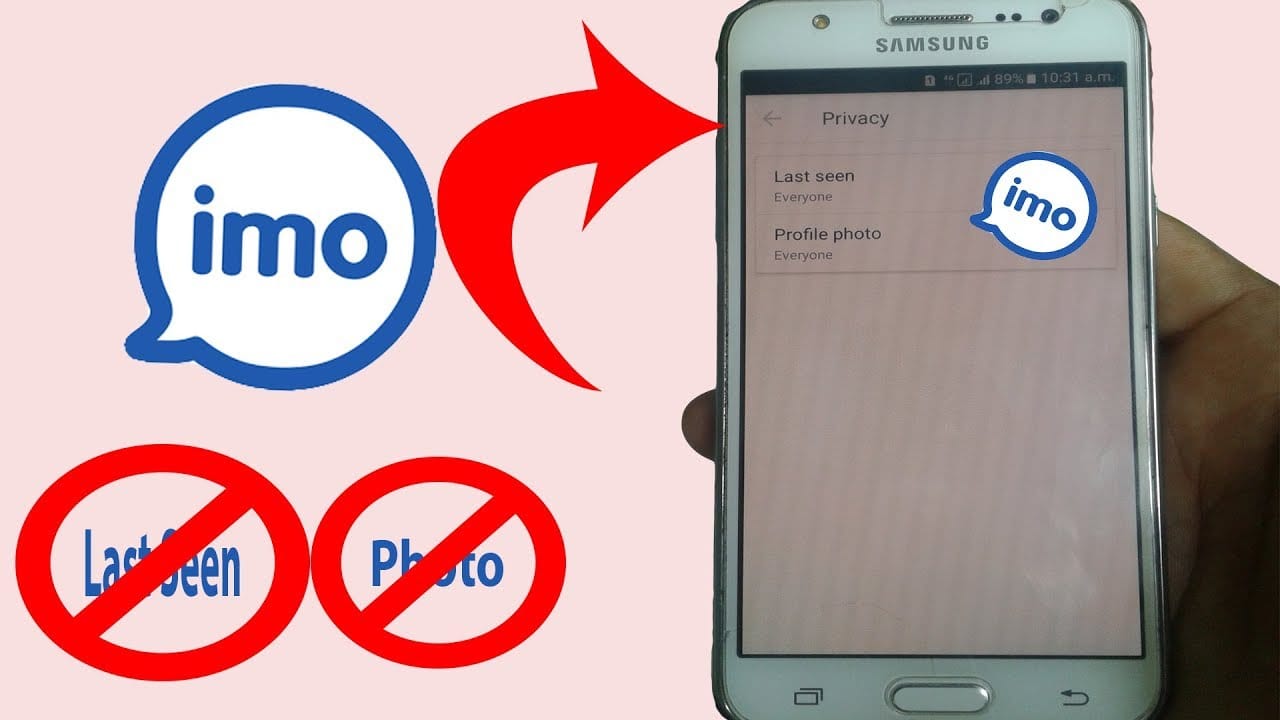
Android
- Tap your profile icon (top-left corner)
- Go to Settings > Privacy
- Locate Online Status toggle
- Switch it off
- Confirm and return to main screen
iOS
- Tap your profile picture from the home screen
- Go to Settings > Security & Privacy
- Find Status Visibility
- Toggle off and save
Both platforms apply the change immediately — no restart required.
Privacy Mode: Appear Offline While Still Using IMO
IMO's all-in-one Privacy Mode suppresses your active status while you use the app normally. When active:
- Online indicator hidden from all contacts
- Last seen timestamps suppressed
- Messages and calls still work normally
- Group members can't detect your activity in shared rooms
Common Mistakes That Accidentally Reveal Your Status
- Opening a chat before Privacy Mode activates briefly registers you as online
- Replying to messages can update last seen on some app versions regardless of settings
- Joining voice rooms can override status hiding on older builds
Always run the latest stable IMO version to ensure privacy settings behave as documented.
How to Secure IMO Video Calls
How AES-256 Encryption Works on IMO
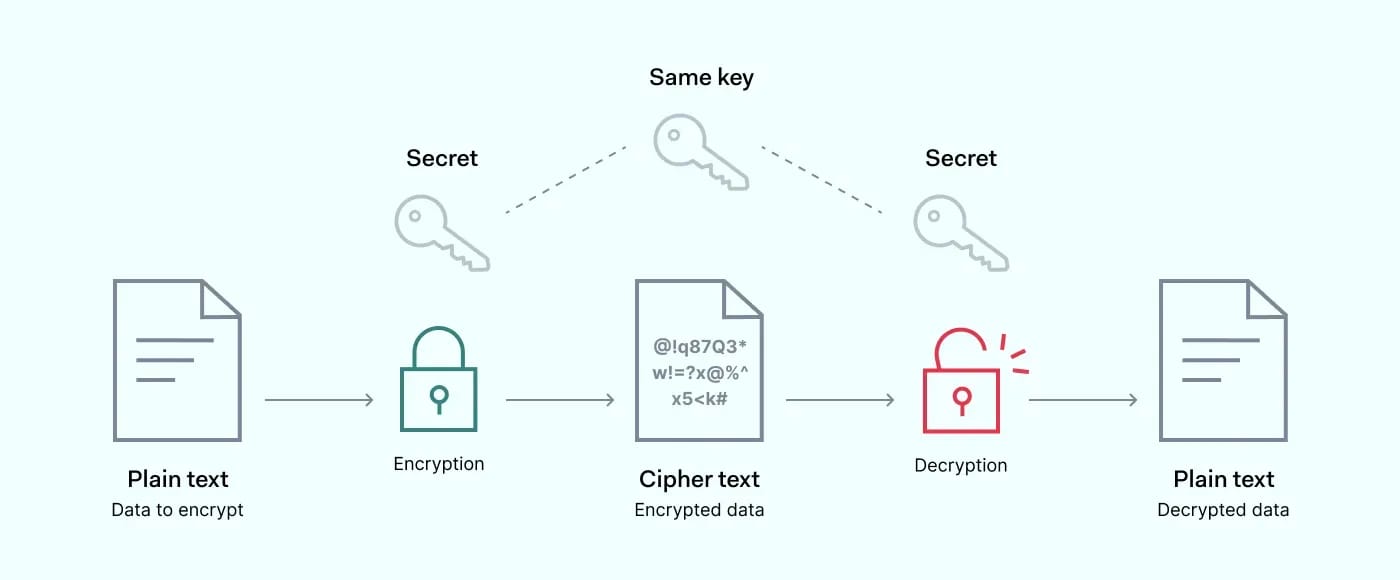
- IMO fetches the recipient's Public Key to encrypt call data
- Encrypted ciphertext transmits over IMO's servers
- Recipient's app uses their Private Key — stored only on their device — to decrypt
IMO's servers can't access call content. Encryption covers text, audio, video, files, photos, and real-time location simultaneously.
Lock Down Your IMO Call Settings
- Enable Private Chat to activate E2EE for messaging alongside calls
- Activate SecretChat via the attachment bar for maximum-security sessions
- Restrict who can call you under Security & Privacy > Contact Permissions
- Review Manage Devices regularly for unauthorized sessions
Block Unknown Callers
From chat list:
- Open IMO and select the contact or unknown number
- Tap BLOCK
From a profile:
- Tap the contact's profile picture twice
- Select Block
Blocked contacts can't message you, call you, invite you to groups, or add you to voice rooms. To unblock: Settings > Security & Privacy > Blocked List > select contact > Unblock.
If You Suspect Your Call Is Being Monitored
- End the call immediately
- Open Manage Devices and review all active sessions
- Log out all unrecognized devices
- Change your verification credentials
- Enable 2-step verification if not already active
- Switch to SecretChat — messages self-destruct after the session, leaving no recoverable data
Last Seen, Read Receipts, and Timestamps
For users managing IMO accounts across multiple regions, buy IMO international calling credits online through buffget for fast, secure top-ups with verified delivery and competitive rates.
Turn Off Last Seen
Settings > Security & Privacy > Last Seen → Set to Nobody or My Contacts. When set to Nobody, no user — including contacts — sees your last active timestamp.
Disable Read Receipts
Same Security & Privacy menu. Disabling read receipts means contacts won't see confirmation you've opened their messages. Note: this is mutual — you also lose the ability to see read confirmations from others.
How These Settings Interact
Last seen, read receipts, and online status are three independent signals. Disabling one doesn't disable the others. For complete activity concealment, configure all three separately.
Two-Step Verification and Login Protection
Enable 2-Step Verification
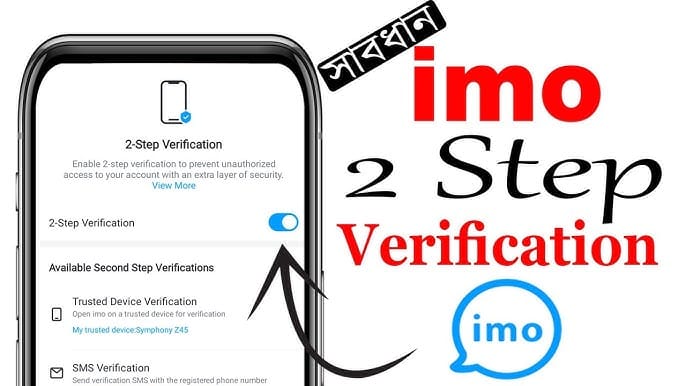
- Go to Settings > Security & Privacy > 2-Step Verification
- Enable and set a strong PIN
- Designate your current device as trusted
- Bangladeshi users: select Send SMS as backup verification
- Set up verification questions as an additional recovery option
Any new device login then requires both the one-time SMS code and your PIN. IMO extends login intervals after multiple failed attempts as a brute-force deterrent.
PIN and Biometric Lock
Use a PIN different from your device unlock code. Where biometric authentication is available, enable it for IMO specifically — this blocks anyone with physical access to your unlocked phone from opening the app.
Manage Active Sessions
Manage Devices shows all devices currently logged into your account:
- Identify unrecognized devices
- Tap any listed device to force remote logout
- IMO uses SIM Binding and Device Management to restrict access to authorized devices only
- Lost trusted device? Recover via recent contact verification — IMO lets you verify identity through a trusted contact in your list
IMO Privacy for Gaming Groups
Stay Anonymous Inside IMO Groups
Set profile picture visibility to Contacts Only: Settings > Privacy > Profile Picture Visibility. This prevents group members not in your contacts from viewing your photo. Use a non-identifying display name for competitive contexts.
Control Who Can Add You to Groups
Set group add permissions to My Contacts Only to prevent strangers from pulling you into unknown gaming rooms without consent.
Pro Tips for Competitive Gamers
- Use SecretChat for strategy discussions — conversations wipe automatically after the session
- Activate Privacy Mode before joining large community voice rooms
- Block suspicious accounts immediately — blocked users can't invite you to groups or voice rooms
- Audit your Blocked List and Manage Devices panel before and after major gaming events
Busting Common IMO Privacy Myths
Myth: Airplane Mode Hides Your Online Status
Airplane mode disconnects your network but doesn't hide your last seen timestamp. When you reconnect, IMO updates last seen to that moment — which can actually confirm to contacts you were deliberately offline.
Myth: Blocking Someone Deletes Your Data From Their Device
Blocking prevents future contact but doesn't delete conversation history from the other person's device. For past message privacy, use SecretChat — its self-destruct mechanism ensures no data persists after the session.
Myth: Privacy Mode Makes You Completely Invisible
Privacy Mode suppresses your active status but doesn't hide group membership, profile name, or profile picture (if set to all contacts). Full anonymity requires configuring multiple settings simultaneously.
What Actually Works vs. What Doesn't
Works:
- SecretChat with session-end message wipe
- 2-step verification with trusted device binding
- Blocking contacts to prevent all forms of contact
- Restricting profile visibility to contacts only
Doesn't work as assumed:
- Airplane mode as a status-hiding tool
- Blocking as a data-deletion mechanism
- Privacy Mode alone as a complete invisibility solution
IMO Privacy Quick-Reference Checklist 2026
Run this 10-point audit today:
- Online Status — Disabled or restricted to contacts only
- Last Seen — Set to Nobody or My Contacts
- Read Receipts — Disabled if activity tracking is a concern
- Profile Picture Visibility — Contacts Only
- 2-Step Verification — Enabled with PIN and trusted device
- Manage Devices — All unrecognized sessions logged out
- Blocked List — Reviewed and updated
- SecretChat — Used for all sensitive conversations
- Group Add Permissions — Restricted to My Contacts
- App Version — Updated to latest stable, beta, or IMO HD build
Review every 90 days, or immediately after any major IMO update that modifies the Security & Privacy UI. IMO introduced phone number verification in December 2020 and has expanded its privacy toolset since — staying current ensures you benefit from the latest protections.
Frequently Asked Questions
Q: How do I hide my online status on IMO without logging out? Activate Privacy Mode via Settings > Privacy. It suppresses your active status signal while you continue using the app — no logout required.
Q: Is IMO video calling encrypted? Yes. IMO applies AES-256 end-to-end encryption to all video calls using Public Key encryption and a Private Key stored only on the recipient's device. IMO's servers can't access call content.
Q: How do I enable two-step verification on IMO?Settings > Security & Privacy > 2-Step Verification. Set a PIN, designate a trusted device, and configure a backup method (SMS for Bangladeshi users, or security questions). New device logins then require both your SMS code and PIN.
Q: Can someone see if I'm online if I've blocked them? No. Blocked contacts lose all visibility into your account — no messages, calls, status, or group invites.
Q: How do I stop strangers from calling me on IMO? Block unknown contacts via chat list (select contact > BLOCK) or profile (tap profile picture twice > Block). Also restrict group add permissions to My Contacts Only.
Q: What is IMO SecretChat and when should I use it? SecretChat is IMO's highest-security mode, accessible from the attachment bar in any chat. It applies E2EE and automatically wipes the entire conversation when you exit. Use it for strategy discussions, sensitive personal conversations, or any exchange you don't want stored on either device.